FAQ
How to Create Custom Prompt Templates in Prompt Anything Pro?
Quick Answer
Custom templates in Prompt Anything Pro let you save reusable prompts with {{variable}} placeholders. Open the Templates tab, name the template, write the prompt body, and pick a default model. Variables can be text inputs, text areas, dropdowns, or auto-filled from selected page text. Templates run with a single click and can be exported as JSON for sharing or backup.
- Templates use double-curly-brace variables:
{{variable_name}}. Each variable can be a text input, text area, select dropdown, or auto-filled from the page selection. - Each template can pin a default model (e.g., Claude Opus 4.6 for writing, GPT-5.4 for coding), a category, and an optional description.
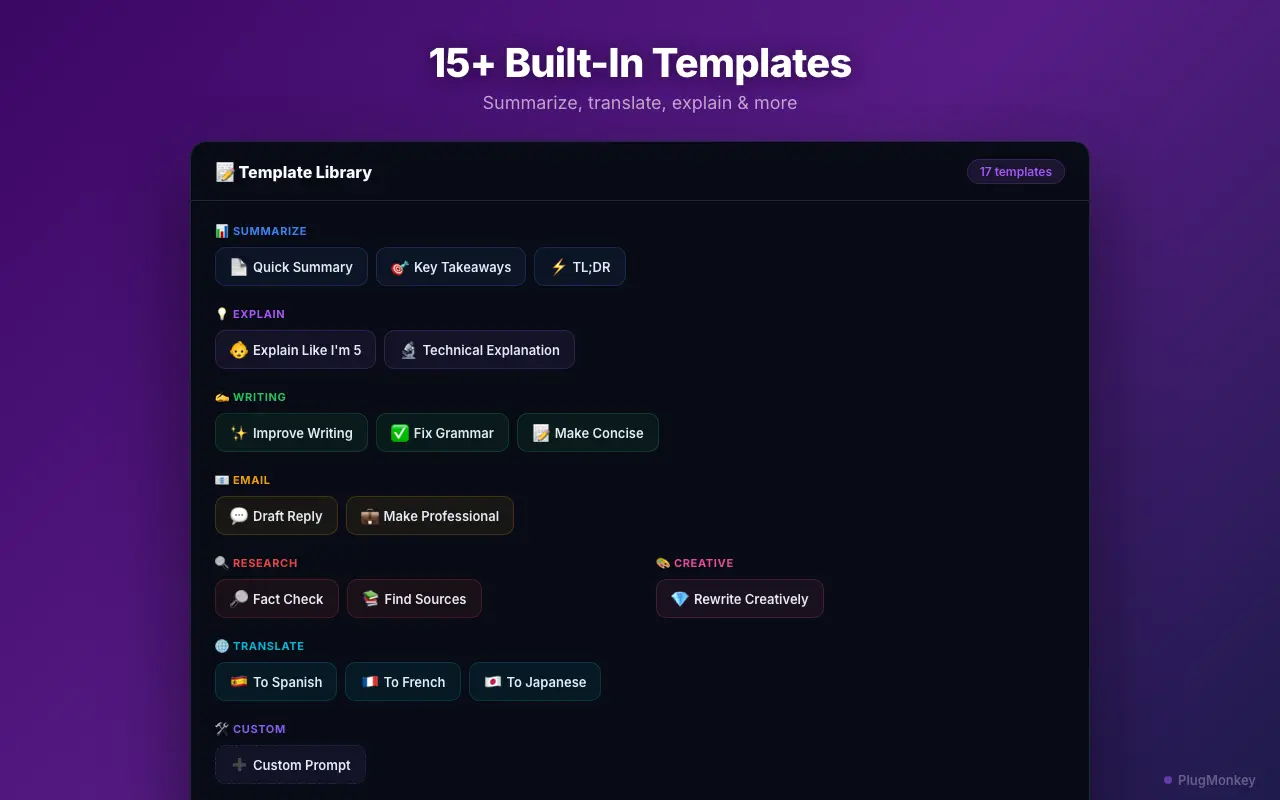
- Common templates: article summarizer, code explainer, email rewriter, translation, grammar check, product description.
- Templates export as JSON for sharing with teammates or backing up. Templates are stored locally in browser storage.
By PlugMonkey Team, Editorial
What Are Prompt Templates?
A prompt template is a pre-written prompt with placeholders for variable content. For example, a translation template might look like: "Translate the following text from {{source_language}} to {{target_language}}: {{text}}". When you use this template, you only fill in the language pair and the text — the instruction structure stays the same. Templates eliminate repetitive typing and ensure consistent, well-crafted prompts every time.
Creating Your First Template
To create a template, open the Prompt Anything Pro overlay and click the Templates tab. Click "New Template" and fill in the template details.
- Template name — A short, descriptive name like "Translate Text" or "Summarize Article"
- Prompt body — The full prompt text with variables enclosed in double curly braces: {{variable_name}}
- Default model — Optionally assign a preferred model (e.g., always use Claude Opus 4.6 for writing tasks, GPT-5.4 for coding tasks)
- Category — Organize templates into categories like Writing, Coding, Research, Translation
- Description — An optional note explaining when to use this template
Template Variable Types
Variables in templates support different input types to make filling them out fast and intuitive.
- Text input {{name}} — A short text field for simple values like a language name, topic, or keyword
- Text area {{content:textarea}} — A larger text area for pasting longer content like articles, emails, or code
- Selection {{tone:select:formal,casual,technical}} — A dropdown menu with predefined options. Great for parameters like tone, language, or output format.
- Auto-fill from selection {{selection:auto}} — Automatically populates with any text you had selected on the webpage when you invoked the template. This enables one-click workflows where you select text and run a template instantly.
Example Templates to Get Started
Here are some popular template ideas to inspire your own library.
- Article Summarizer — "Summarize the following article in 3 bullet points: {{article:textarea}}"
- Code Explainer — "Explain what this {{language}} code does in plain English: {{code:textarea}}"
- Email Rewriter — "Rewrite this email in a {{tone:select:professional,friendly,concise}} tone: {{email:textarea}}"
- Translation — "Translate from {{source_language}} to {{target_language}}: {{text:textarea}}"
- Grammar Check — "Fix any grammar and spelling errors in this text. Return only the corrected version: {{text:textarea}}"
- Product Description — "Write a compelling product description for {{product_name}} targeting {{audience}}. Key features: {{features:textarea}}"
Sharing and Importing Templates
Templates can be exported as JSON files and shared with colleagues or imported on another machine. This is useful for teams that want consistent AI workflows across members. Export your template library from Settings > Templates > Export, and import on another device using the Import button. Templates are stored locally in your browser, so exporting is also a good backup practice.
Want a Second Opinion?
Ask AI for an independent perspective on this question.
AI responses are generated independently and may vary
Try Prompt Anything Pro Free
Build your own AI prompt library. Create reusable templates with variables for any workflow. Install free.
4.9/5 (95 reviews)15,630 users