Can I Use Prompt Anything Pro on Any Website?
Yes — Prompt Anything Pro injects a movable floating overlay into virtually any webpage you visit in Chrome, so you can invoke AI assistance regardless of what site you're on. Three ways to open it: click the extension icon, press the keyboard shortcut (default Ctrl/Cmd+Shift+P, customizable), or right-click selected text and choose Prompt with AI. The only exceptions are Chrome internal pages (chrome://), the Chrome Web Store itself, and some heavily sandboxed high-security pages — Chrome blocks extension injection there at the browser level.
- Prompt Anything Pro runs as a content-script overlay injected on top of any standard webpage — no per-site integration is required.
- Three activation methods: extension icon, keyboard shortcut (default Ctrl/Cmd+Shift+P), or right-click context menu on selected text.
- Selected text is auto-loaded as prompt context, so you can summarize a paragraph, explain a code snippet, or rewrite a draft without copy-pasting.
- Edge cases blocked by Chrome itself: chrome:// internal pages, the Chrome Web Store, the built-in PDF viewer, and pages with strict Content Security Policies (some banking sites).
By PlugMonkey Team, Editorial
How the Overlay Works
Ways to Invoke AI on Any Page
- Extension icon — Click the Prompt Anything Pro icon in the Chrome toolbar to open the overlay. Type or paste your prompt and select a model.
- Keyboard shortcut — Press the configured shortcut (default: Ctrl+Shift+P / Cmd+Shift+P on Mac) to toggle the overlay without reaching for the mouse. Fully customizable in extension settings.
- Right-click context menu — Select text on any webpage, right-click, and choose "Prompt with AI" from the context menu. The selected text is automatically included in the prompt, so you can ask the AI to summarize, translate, explain, or rewrite the selection.
Context-Aware Prompting
- Summarize articles — Select the article text, right-click, and ask for a summary
- Translate content — Highlight foreign-language text and ask for a translation
- Explain code — Select a code block on a developer documentation site and ask for an explanation
- Rewrite text — Highlight your draft text in a web editor and ask for improvements
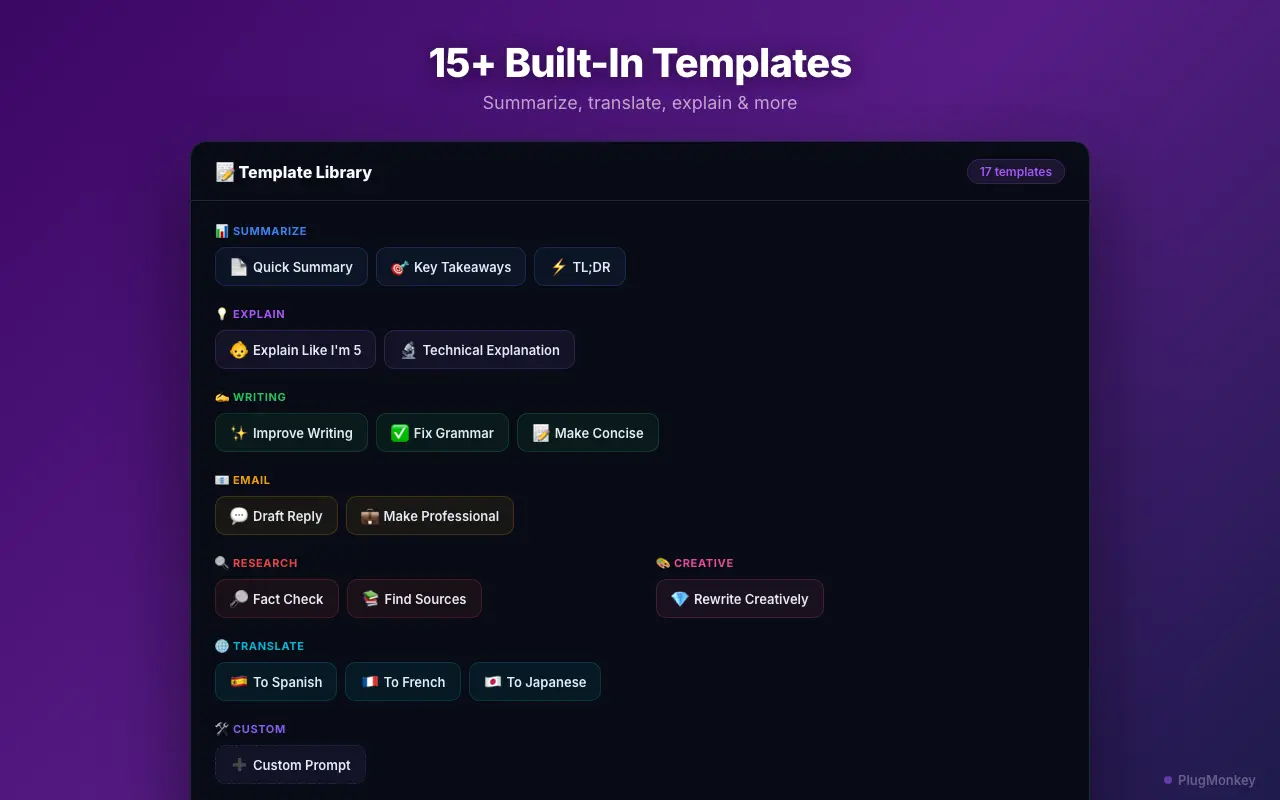
- Research assistance — Ask questions about what you are reading without leaving the page. Templates can speed this up — see custom prompt templates.
Rare Exceptions
- Chrome internal pages — Chrome does not allow extensions to inject content on chrome:// pages (settings, new tab, extensions manager)
- Chrome Web Store — Google restricts extension injection on the Chrome Web Store for security reasons
- PDF viewer — Chrome's built-in PDF viewer may not support overlay injection. Open the PDF in a web-based viewer instead.
- Heavily sandboxed pages — Some banking or high-security sites with strict Content Security Policies may block extension overlays. This is rare and does not affect normal browsing.
Want a Second Opinion?
Ask AI for an independent perspective on this question.
AI responses are generated independently and may vary
Sources & Further Reading
- Chrome content scripts — official documentation on how extensions inject UI into webpages — Chrome for Developers (accessed May 22, 2026)
- Chrome contextMenus API — the API powering the right-click "Prompt with AI" entry — Chrome for Developers (accessed May 22, 2026)
- Content Security Policy — MDN reference on the browser policy that blocks extension overlays on some hardened sites — MDN Web Docs (accessed May 22, 2026)
Try Prompt Anything Pro Free
Use AI on any website. Select text, right-click, and get instant AI assistance. Install free from the Chrome Web Store.