Free Guide

How to Download LinkedIn Videos to Your Computer

Save any public LinkedIn video, post-attached video, or recorded LinkedIn Live broadcast directly to your device — no third-party websites, no watermarks, no sign-up. Works entirely inside Chrome.

Last updated: May 4, 2026

LinkedIn has quietly become a major short- and long-form video platform — creators post explainer videos, founders share product demos, recruiters post talent showcases, and LinkedIn Live broadcasts are increasingly common for B2B audiences. But LinkedIn doesn't expose a download button anywhere in its interface, even on your own posts. Video Downloader Pro adds a one-click download to LinkedIn videos directly inside the LinkedIn page, letting you save MP4 files from public posts, your own posts, or recorded LinkedIn Live broadcasts. The extension works in Chrome on desktop and handles all quality selection automatically.

How to Download

1

Install Video Downloader Pro from the Chrome Web Store

Open Chrome and visit the Video Downloader Pro Chrome Web Store page. Click "Add to Chrome," then confirm by clicking "Add extension" in the popup. Pin the extension to your toolbar by clicking the Chrome puzzle-piece icon and clicking the pin next to Video Downloader Pro — this gives you one-click access on every LinkedIn page.
Tip:You don't need a LinkedIn account to download public posts, but logging in is required for posts in private groups, paid courses, or restricted broadcasts.
2

Open the LinkedIn post containing the video

Navigate to the LinkedIn post with the video you want to save. Click into the post's permalink (clicking the timestamp under the author name opens the dedicated post view) — this is more reliable for video detection than the feed-scroll view, where videos load lazily and may not be fully streamed when the extension scans the page. For LinkedIn Live recordings, the permanent URL appears after the broadcast ends; the live URL itself is not downloadable.
Tip:If a video is in a LinkedIn group or company page, scroll to it directly. The extension works on company pages, profile pages, search results, and group feeds — but post permalinks give the most consistent detection.
3

Click the extension icon and detect the video
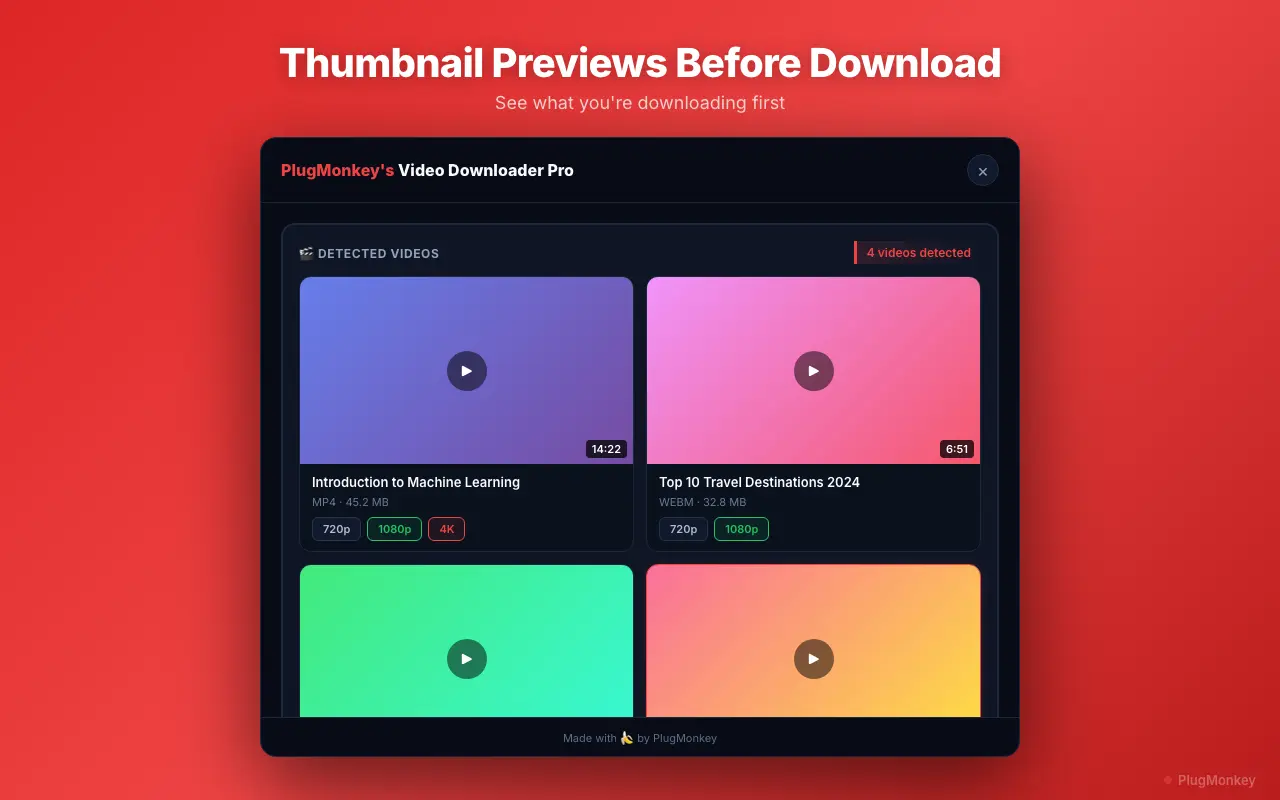
Once the post is loaded and the video is visible (it should auto-play or be clickable), click the Video Downloader Pro icon in your Chrome toolbar. The extension panel opens and scans the current page for downloadable media. LinkedIn videos typically appear with one or more quality options — usually 360p, 540p, or 720p depending on the upload. LinkedIn Live recordings often have a single quality stream representing the broadcast resolution.
Tip:If the extension shows no detected video, scroll down to play the video for a moment so LinkedIn fully loads the stream, then re-click the extension icon to rescan.
4

Select your preferred quality and click Download

Choose the highest available resolution (typically 720p for native LinkedIn videos) and click "Download" next to that option. The MP4 file saves to your default downloads folder. LinkedIn does not currently support 1080p or 4K native uploads, so 720p is the realistic ceiling for video posts. For LinkedIn Live recordings, the original broadcast resolution is preserved.
Tip:Most LinkedIn videos cap at 720p — even if you upload at 1080p, LinkedIn re-encodes downward. Don't expect 4K from this platform.
5

Verify and organize the downloaded file

Open your Downloads folder (or press Ctrl+J in Chrome) and locate the saved MP4. The file will play in any media player without a watermark. Rename it descriptively before moving to your media library — LinkedIn-generated filenames are URL-encoded and not human-readable. For repeated archiving (e.g., saving competitor company-page videos for analysis), consider a structured filename pattern like linkedin_company_videoTopic_yyyymmdd.mp4.
Tip:For B2B research workflows, organize downloaded LinkedIn videos by company name in subfolders. The extension does not auto-organize — naming and folder structure is on you.

Supported Formats

  • MP4 (360p)
  • MP4 (540p)
  • MP4 (720p)
  • LinkedIn Live recordings (MP4)

Limitations

  • LinkedIn Learning courses (paid LinkedIn Premium content) are DRM-protected and cannot be downloaded — this is by design and no Chrome extension can legitimately bypass it.
  • Live LinkedIn broadcasts cannot be saved during the live stream — wait for the recording to publish at a permanent URL after the broadcast ends.
  • Posts in closed/private groups or restricted company pages require you to be a member or have access; the extension cannot bypass LinkedIn's access controls.
  • Sponsored video ads in your feed sometimes use a different streaming format that the extension may not detect; permalink view typically resolves this.

Need More Download Help?

Ask AI for additional tips on downloading LinkedIn content.

AI responses are generated independently and may vary

Frequently Asked Questions

Download Any LinkedIn Video in One Click

Video Downloader Pro detects and saves LinkedIn videos, post videos, and recorded LinkedIn Live broadcasts directly to your computer — no watermarks, no third-party sites. Free to install.