FAQ
Can I Download Multiple Videos at Once?
Quick Answer
Yes — Video Downloader Pro scans every video request the browser makes on the current page and surfaces each detected stream in the popup with its resolution, format, and estimated file size. You can download videos one-by-one, select a subset with checkboxes, or queue them all at once. Batch (parallel) downloading is a Pro feature; the free tier still detects multiple videos but caps quality at 480p and downloads them individually.
- Video Downloader Pro detects every video stream on the current page and lists each with resolution, format, and size — the extension icon shows a badge count of detections.
- You can download videos individually, select a subset via checkboxes, or queue all detected videos in parallel (Pro tier only).
- Lazy-loaded pages: scroll through the full feed before opening the extension so all videos register with the detector before you batch-download.
- Free tier supports multi-video detection but caps each download at SD (480p) and lacks the parallel queue; Pro removes both limits.
By PlugMonkey Team, Editorial
How Multi-Video Detection Works
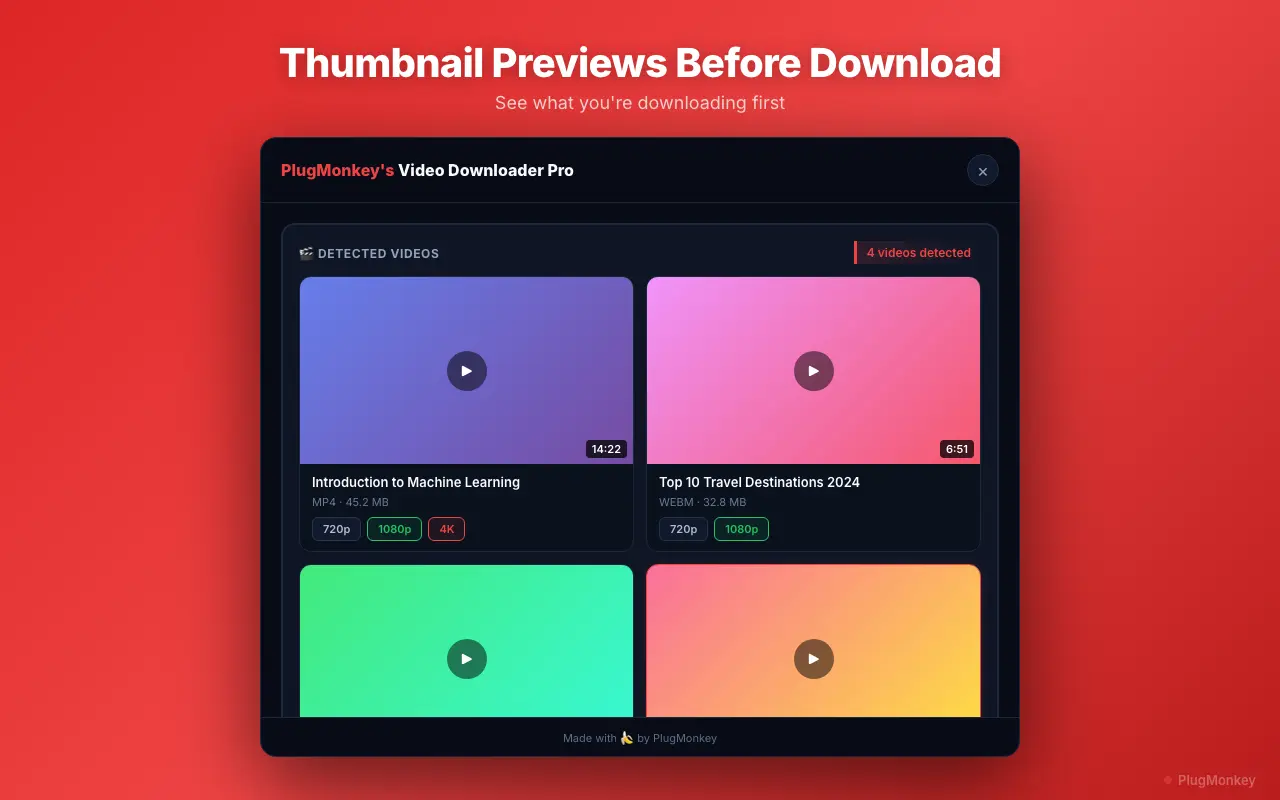
When you visit a page with multiple videos (a social media feed, a gallery page, or a webpage with several embedded videos), Video Downloader Pro scans all network requests and identifies each video stream. The extension icon shows a badge count indicating how many videos were detected. Click the icon to see a list of all detected videos with their resolution, format, and estimated file size. Each video has its own download button.
Individual vs Batch Download
You have two options when multiple videos are detected on a page.
- Individual download — Click the download button next to any specific video to save just that one. Useful when you only want one video from a page with many.
- Batch download (Pro) — Click the "Download All" button to queue all detected videos for download simultaneously. The extension manages the queue and downloads files in parallel, up to a configurable number of concurrent downloads.
- Selective batch — Check the boxes next to the videos you want, then click download to save only the selected ones. This gives you the efficiency of batch downloading with the control of individual selection.
Batch Download Settings
The Pro tier includes configuration options for batch downloading that help manage large download sessions.
- Concurrent downloads — Set how many videos download simultaneously (default: 3). Higher values are faster but use more bandwidth.
- Default quality — Choose a preferred quality level (e.g., 1080p) that applies to all batch downloads. The extension picks the closest available quality for each video.
- Download folder — Chrome's default download folder is used, but you can organize downloads by letting Chrome prompt you for each file's location
- File naming — Videos are saved with descriptive filenames based on the page title and video sequence number
Limitations and Tips
Batch downloading works best with certain types of pages and has some practical considerations.
- Lazy-loaded videos — Some websites only load videos as you scroll down the page. Scroll through the entire page before opening the extension to ensure all videos are detected.
- Mixed quality — Different videos on the same page may have different maximum quality levels. The batch download uses your preferred quality as a target but falls back to the closest available option.
- Large downloads — Downloading many videos at once can consume significant disk space and bandwidth. A page with 20 HD videos could be 5-10 GB total. Check available disk space before starting a large batch. For quality selection tips, see downloading in 4K.
- Free tier — The free tier supports detecting and downloading multiple videos, but each download is limited to SD quality (480p). Batch download is a Pro feature.
Want a Second Opinion?
Ask AI for an independent perspective on this question.
AI responses are generated independently and may vary
Sources & Further Reading
- HTML <video> element — MDN reference for the element types Video Downloader Pro detects in-page — MDN Web Docs (accessed May 22, 2026)
- Chrome Web Store Program Policies — extension content and behavior rules — Chrome for Developers (accessed May 22, 2026)
Try Video Downloader Pro Free
Detect and download all videos on any page. Batch downloading available with Pro. Install free to try.
4.9/5 (127 reviews)32,410 users