How to Use Reader Mode in Chrome
Chrome has a built-in reading mode that strips ads, sidebars, and clutter from any article. Here's how to turn it on, how to customize it, and what to use when you need to save and annotate what you read.
Before You Start
- Google Chrome browser (desktop), reasonably up to date
- Any article or long-form page to test it on
Open reading mode in the Chrome side panel
Chrome's reading mode lives in the side panel. On any article:
- Click the side panel icon to the right of the address bar, or press Ctrl+Shift+S (Cmd+Shift+S on Mac).
- Open the dropdown at the top of the panel and choose Reading mode.
Chrome distills the page into plain text and images in the panel, dropping ads, navigation, popups, and sidebars. The original page stays open next to it, so you can jump back to comments or embedded media whenever you want.
The side panel is narrow by design. Drag its left edge to widen it — for long reads, a wider column is much easier on the eyes.
Use full-page reading mode for longer articles
Google added a full-page reading mode to Chrome in 2026, which is a much better fit for long articles than the narrow side panel. To use it, right-click anywhere on the page and choose Open in reading mode.
Instead of squeezing the text into a panel, the distilled article takes over the whole tab. If you mostly read long-form pieces, this is the version worth getting used to.
If you don't see the option, your Chrome is probably older than the change. Update via Chrome menu → Help → About Google Chrome, then restart.
Customize the font, size, theme, and spacing
Reading mode has a small toolbar at the top with the display controls:
- Font — switch between serif and sans-serif faces
- Font size — bump it up for comfort or down to fit more on screen
- Theme — light, dark, or a warmer tone for night reading
- Spacing — line height and letter spacing, which genuinely helps if you find dense text hard to track
These settings stick, so you only need to dial them in once.
Turn reading mode on if you don't see it
If reading mode isn't in your side panel dropdown, enable it explicitly:
- Open Chrome Settings.
- Search for Reading mode.
- Change the setting from Default to Enabled.
- Restart Chrome.
One more thing worth knowing: reading mode only works on pages Chrome can actually distill. On a news article or blog post it works well. On a homepage, a dashboard, a web app, or a heavily interactive page, there's no single article to extract, so the option may be greyed out or the result may look wrong. That's expected behavior, not a bug.
Reading mode is a display layer, not a saver. Close the tab and the distilled view is gone — Chrome does not keep a copy of the article for you.
Know what Chrome's reading mode does not do
Chrome's reading mode is genuinely good at one job: making a single page readable right now. It is not built for anything after that. It cannot:
- Save the article for later — there's no library, and the distilled version disappears with the tab
- Highlight passages or attach notes
- Tag or organize what you've read
- Export anything to Markdown, CSV, or your notes app
- Search across everything you've read
- Work offline — it still needs to load the live page
Chrome's separate Reading list feature saves links, but it just stores the URL — reopening it re-fetches the live page, with all the clutter back and no annotations.
If all you want is a cleaner view of the page in front of you, stop here — Chrome covers it and you don't need anything else.
Use ReadMonkey Pro when you want to keep what you read
If you read to research rather than just to skim, the gap above is the whole problem. ReadMonkey Pro is a Chrome extension that adds the missing half:
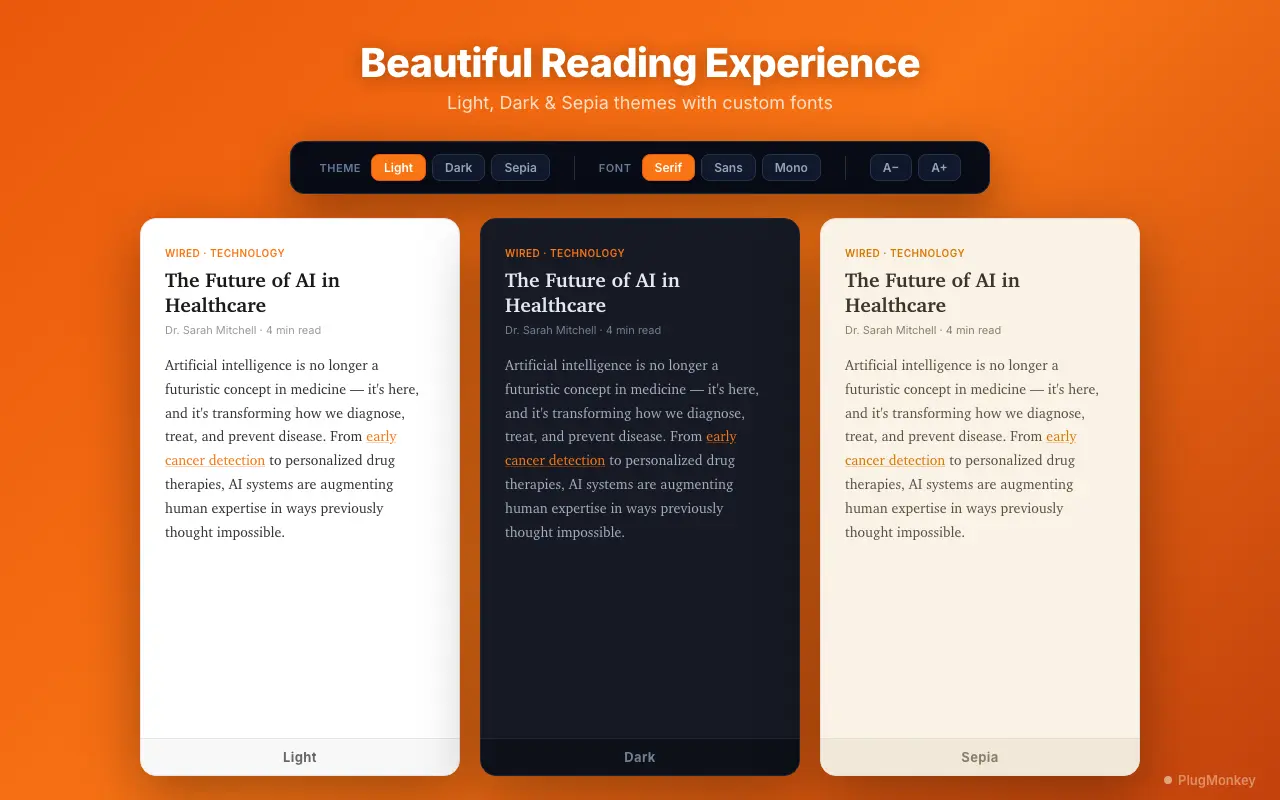
- Distraction-free reader with Light, Dark, and Sepia themes and serif/sans/mono fonts
- One-click save to a real library you can come back to, including offline
- Highlights in 5 colors with inline notes, collected in one panel for review
- Tags and search across everything you've saved
- Export to Markdown, HTML, CSV, or JSON — so highlights land in Obsidian, Notion, or a spreadsheet
It syncs through Chrome's own sync rather than a third-party cloud, so there is no account to create and nothing to shut down. The free version saves 25 articles per week with 2 highlight colors and JSON export; PRO removes the cap and adds the other formats, all 5 colors, inline notes, and full-text search.
A practical split: use Chrome's reading mode for anything you'll read once and forget, and save to ReadMonkey Pro anything you might want to quote, cite, or find again in six months.
Summary
Chrome's reading mode is a genuinely useful built-in feature: open the side panel with Ctrl+Shift+S (Cmd+Shift+S on Mac) and pick Reading mode, or right-click and choose Open in reading mode for the full-page version added in 2026. Set your font, size, theme, and spacing once and they persist. Its limit is that it's a view, not a library — nothing is saved, highlighted, tagged, exported, or searchable afterward, and Chrome's Reading list only stores the URL. For reading you want to keep, ReadMonkey Pro adds the saving, highlighting, tagging, offline access, and Markdown/CSV export that Chrome's reader deliberately leaves out.
Need More Help?
Get personalized AI assistance with additional tips and troubleshooting.
AI responses are generated independently and may vary
Frequently Asked Questions
Keep What You Read
ReadMonkey Pro adds saving, highlighting, tags, offline reading, and Markdown export to Chrome's clean reading view. Free to install, no account needed.