Batch Download All Videos From an Instagram Account
Whether it's your own account (full archive), a public account (creator research), or a private account you follow (legitimate access only) — the workflow handles 50-500+ videos. Reels, Stories Highlights, IGTV — all captured to local MP4. Critical: only what you can already see in Instagram. No bypass tools.
Before You Start
- Chrome browser with Video Downloader Pro installed
- Logged-in Instagram account in Chrome (required for accessing your own private content + private accounts you follow)
- For private accounts: you must be an approved follower — the workflow uses your existing access, not bypass tools
- Storage space — 50 Reels ≈ 1 GB, 200 Reels ≈ 4 GB, plus Stories and IGTV add separately
- Time — typically 30-90 minutes for a mid-size account (50-200 videos), depending on Instagram's rate limits
Identify your scenario (different tactics per case)
Three distinct workflows depending on the account type:
- Your own account: easiest. Instagram's Settings → Privacy → Download Your Information actually does most of this (official export). Use that for the comprehensive archive; use this guide for ad-hoc per-video captures.
- Public account (other creator): straightforward. Navigate to their profile, capture videos one-by-one using Video Downloader Pro. For 50+ videos consider gallery-dl (free CLI tool, see step 6).
- Private account you follow: identical workflow to public — Video Downloader Pro uses your existing logged-in Instagram session. Critical: this is for accounts that ALREADY APPROVED YOUR FOLLOW. No tool bypasses Instagram's private-account access controls.
If you want to download from a private account you DON'T follow: stop here. No legitimate tool exists. See our honest analysis of the scam-tool category for the full picture.
Tools claiming to 'view private Instagram' or 'bypass private accounts' are scams or phishing. Don't install them. The workflow in this guide is for content you can already see in Instagram via your existing session.
Map the account's content surface
Before downloading, inventory what's there:
- Posts grid: the main 3-column grid — mix of photo posts (skip these for video archive), Reels (download), and carousel posts (sometimes include video slides)
- Reels tab: dedicated Reels view — easier to identify all videos
- Highlights: the circle row on the profile — saved Stories, organized by topic. Each highlight contains multiple Story segments (typically 3-10 each).
- IGTV tab (if account uses it): long-form videos. Many accounts have stopped using IGTV in favor of Reels; check before assuming.
- Tagged tab: videos OTHER accounts posted that tagged this account. Out of scope for typical archive.
Take notes (or screenshot) the count per category before starting — useful for verifying complete archive at the end.
Stories that aren't saved to Highlights expire after 24 hours and are forever lost. If the account regularly posts Stories you want, enable Instagram notifications + check Highlights weekly for new additions. Don't try to retroactively capture expired Stories — they're gone.
Capture Reels — the main video format
Reels are typically the bulk of any account's video content in 2026. Workflow for 50+ Reels:
- Open the account's Reels tab (instagram.com/[username]/reels/)
- Click the first Reel — it opens in the Reels player
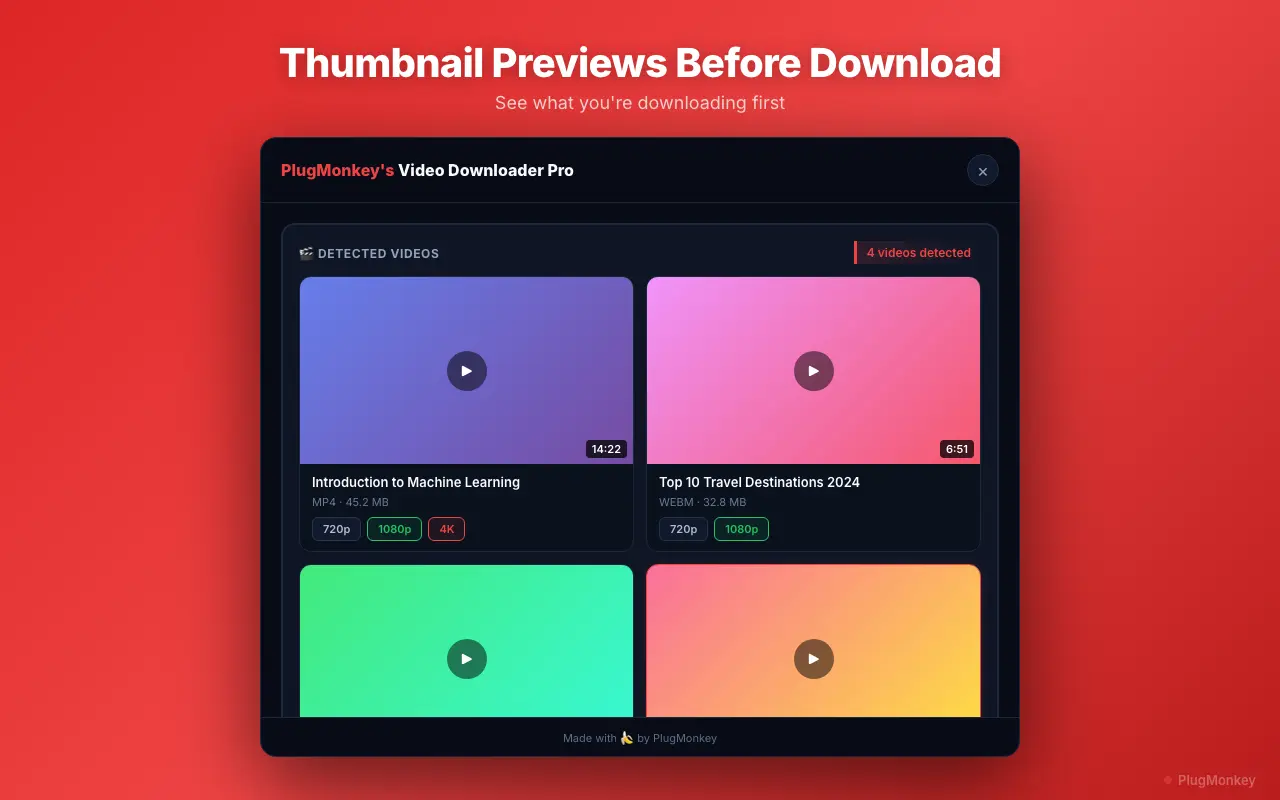
- Trigger Video Downloader Pro — the extension detects the video stream
- Pick the highest available resolution — typically 720p or 1080p
- Download saves as MP4 to your Downloads folder
- Click next Reel (right arrow or swipe), repeat
Naming convention as you go: [creator_handle]_[date]_[short_description].mp4 — keeps the archive browseable.
For 100+ Reels, the manual one-by-one workflow becomes painful. The faster path: load 10-20 Reels in tabs (middle-click each to open in background), then trigger Video Downloader Pro per tab. Parallel downloads, less switching.
Capture Stories Highlights
Highlights are saved Stories — they persist indefinitely on the account's profile (unlike active Stories which expire in 24 hours).
- Click each highlight circle on the profile
- The Highlight plays as a sequence of Story segments (5-30 seconds each)
- For each segment: pause (tap-hold the Story screen), trigger Video Downloader Pro, capture as MP4 (or JPG if it's a photo Story)
- Advance to next segment (click forward in the Story player), repeat
Per-highlight typical count: 5-15 segments. A profile with 10 highlights = 50-150 segments to capture. Time per segment: ~10 seconds with practice.
Highlights don't have a viewer list (unlike active Stories which show viewers for 48 hours). The account owner has NO signal whether you viewed or downloaded their Highlights — they only see who viewed active Stories.
Capture IGTV (if account uses it)
IGTV is Instagram's long-form video format (15+ minutes). Many accounts stopped using it after Reels launched; some still maintain IGTV archives.
- Look for the IGTV tab on the profile (between Reels and Tagged)
- Click each IGTV video to open in the player
- Trigger Video Downloader Pro — detects the HLS stream
- Choose highest available resolution — IGTV often available in 1080p
- Download — IGTV videos are typically 50-200 MB each due to length
For accounts with substantial IGTV libraries: prioritize IGTV captures because the format is being deprecated; some content may be hard to access in the future as Instagram phases out IGTV-specific URLs.
Some IGTV content is age-restricted or geo-restricted. The extension can capture what your account can play; it doesn't bypass restrictions. If a video plays for you, the extension can capture it; if you see 'this content is not available in your region', no tool fixes that.
Bulk-archive shortcut: gallery-dl (free CLI for power users)
For accounts with 200+ videos, the manual workflow becomes tedious. The bulk tool is gallery-dl — free, open source, command-line.
- Install:
brew install gallery-dl(Mac) orpip install gallery-dl(any platform) - Authenticate (required for private accounts you follow): export your Instagram cookies from Chrome using a browser extension like 'cookies.txt LOCAL' → save as instagram_cookies.txt
- Run the download:
gallery-dl --cookies instagram_cookies.txt "https://www.instagram.com/USERNAME/" - gallery-dl handles pagination automatically and downloads ALL posts/reels/IGTV from the account
- Output structure: creates a folder per account with all media organized by date
For a 500-video account, gallery-dl typically completes in 30-90 minutes (Instagram's rate limits are the bottleneck).
Use Video Downloader Pro for in-the-moment captures while browsing Instagram normally. Use gallery-dl when you've decided to archive an entire account. Same logic as the YouTube workflow: browser extension for ad-hoc, CLI tool for bulk.
Aggressive gallery-dl runs (no rate limiting) can trigger Instagram to temporarily block your account from API endpoints. Add --sleep 2 to throttle. Worst case: temporary block resolves in hours. Don't run on a critical account you can't lose access to.
Summary
Instagram video archival workflow: Video Downloader Pro for browser-based per-video captures (works for accounts you follow + public accounts), gallery-dl (free CLI) for bulk account archival (200+ videos), Instagram's official Download Your Information for your own account's full export. Three account types (yours, public, private-you-follow) all use the same Video Downloader Pro workflow — what changes is access, not tools. Critical: no legitimate tool bypasses Instagram's private-account access controls; the workflow only captures what you can already see.
Need More Help?
Get personalized AI assistance with additional tips and troubleshooting.
AI responses are generated independently and may vary
Frequently Asked Questions
Capture Instagram videos browser-side — Video Downloader Pro (free)
For ad-hoc per-video captures while browsing Instagram, Video Downloader Pro is the right tool. For 200+ video bulk archives, pair with gallery-dl (free CLI). Both work within your existing Instagram access.