How to Archive a YouTube Channel Before It's Deleted
YouTube channels get deleted weekly — DMCA strikes, demonetization disputes, account compromises, creators who decide to start over. By the time you notice the channel is gone, the videos are gone too. This workflow archives a creator's full channel in 2-6 hours: Video Downloader Pro for picking specific videos, yt-dlp (free CLI) for bulk archiving an entire channel.
Before You Start
- Chrome browser with Video Downloader Pro installed (for individual videos)
- Optional: yt-dlp installed via Homebrew (Mac), pip (Linux), or chocolatey (Windows) for bulk archiving
- Storage space — a 500-video channel at 1080p is typically 100-300 GB; check available disk space first
- Time — typically 2-6 hours for a mid-size channel (50-200 videos), longer for archives with 1000+ videos
- Legal awareness — YouTube's TOS prohibits downloading; this guide is for archival use case (preventing content loss, not redistribution)
Decide the urgency: imminent deletion vs preservation backup
Two different scenarios with different tactical responses:
- Imminent deletion (channel is about to be removed): the channel owner has announced deletion, OR YouTube has issued a strike that may lead to channel termination, OR the creator is going through a public meltdown. Time to act: hours. Skip planning; start downloading immediately.
- Preservation backup (channel may be deleted someday): you follow a small creator whose channel may eventually disappear. Time to act: days. Plan thoroughly, create an organized archive structure, scheduled re-runs.
For urgent cases: skip to step 3 (yt-dlp bulk archive). For preservation: continue with steps 2-6.
If the channel is being actively threatened (mass-flagging campaign, advertiser pressure), download the channel's COMMENTS too — those often disappear before the videos themselves. yt-dlp has a --write-comments flag.
Re-uploading downloaded YouTube content to YouTube without the original creator's permission is a copyright violation — you can be DMCA'd. Personal archive for offline viewing is generally fine; redistribution is not.
Inventory the channel — what's there, what's already lost
Before downloading, understand the full scope:
- Open the channel's Videos tab — count total videos shown
- Check the Live tab — past livestreams have separate URLs and metadata
- Check the Playlists tab — useful for organizing the archive later
- Check the Community tab — community posts disappear with the channel
- Note videos hidden by 'Sort: Oldest' — some channels have unlisted videos accessible via direct link only
Use Social Blade or a similar third-party stats tracker to see the channel's historical video count vs current — if numbers don't match, videos have already been removed. Those are unrecoverable.
Save the channel's About page text + handle + ID immediately. These are gone instantly when the channel is deleted; the videos sometimes persist on YouTube's CDN for hours after the channel disappears (recoverable via direct video IDs if you saved them).
Install yt-dlp (the right tool for bulk channel archiving)
Video Downloader Pro is excellent for individual videos but not optimized for bulk channel downloads (500+ videos sequentially in the browser is painful). For full-channel archiving, yt-dlp is the right tool — free, open source, command-line, handles batch downloads, resumes interrupted downloads, and respects YouTube's rate limits.
Install commands by platform:
- Mac:
brew install yt-dlp - Linux:
sudo pip install yt-dlporsudo apt install yt-dlp - Windows:
choco install yt-dlpvia Chocolatey, OR download the .exe from github.com/yt-dlp/yt-dlp/releases
Verify install: yt-dlp --version should return a version number.
yt-dlp is the actively-maintained successor to youtube-dl (which has slower release cycles). Use yt-dlp specifically — it handles YouTube's frequent player changes much better.
Run the channel archive command (yt-dlp)
Basic channel download:
yt-dlp --download-archive archive.txt -o "%(uploader)s/%(upload_date)s_%(title)s.%(ext)s" "https://www.youtube.com/@CHANNEL_HANDLE/videos"Breakdown:
--download-archive archive.txt— tracks which videos are already downloaded (allows resume after interruption)-o "..."— filename template: creator folder, date prefix, sanitized title"https://..."— the channel's videos page URL
Add quality control:
yt-dlp --download-archive archive.txt -o "%(uploader)s/%(upload_date)s_%(title)s.%(ext)s" -f "bv*[height<=1080]+ba/b[height<=1080]" "https://www.youtube.com/@CHANNEL/videos"The -f flag caps at 1080p to control file size. Remove for original quality (much larger files).
For VERY large channels (1000+ videos): use --sleep-interval 5 to add 5-second pauses between downloads. YouTube rate-limits aggressive scraping; this avoids triggering anti-bot blocks.
Some YouTube creators' uploads are 4K or higher — without the -f quality cap, a 1000-video archive can balloon to 5+ TB. Set the cap unless you have unlimited storage.
Handle the special cases: livestreams, unlisted videos, age-restricted content
The basic channel archive command misses three categories:
- Past livestreams: often in a separate /streams URL. Add the streams URL as a second yt-dlp run:
yt-dlp ... "https://www.youtube.com/@CHANNEL/streams" - Unlisted videos: not discoverable via the channel page. You need direct URLs. Check the creator's social media, Discord, or community posts for links.
- Age-restricted content: requires authenticated yt-dlp session. Pass cookies:
yt-dlp --cookies-from-browser chrome ...— uses your already-logged-in Chrome session.
For Member-only content (channel memberships): you must have an active membership AND pass --cookies-from-browser chrome to authenticate.
If a creator's channel disappears mid-archive, their videos may still be playable for hours via direct video ID URLs (youtube.com/watch?v=XXX). yt-dlp will keep downloading from the cached URLs even after the channel is gone — IF you have the URL list. Save the channel's video URL list at the start as insurance.
Organize the archive + add metadata
Post-download, the archive folder will be hundreds-to-thousands of MP4 files. Make it browseable:
- Add a README.md at the top documenting: channel name, channel ID, download date, total video count, total size, source URL, your reason for archiving
- Save the channel's About page text as channel-bio.txt
- Save the channel's PFP + banner as PNGs (use yt-dlp's --write-thumbnail flag)
- Download metadata as JSON:
yt-dlp --write-info-json ...writes per-video metadata files (title, description, views, upload date, tags) - Backup to a second location: external drive + cloud sync (Backblaze, B2, S3) for redundancy
For long-term archive quality: use a video metadata tool (like Tag&Rename or MusicBrainz Picard) to embed metadata into MP4 files themselves.
If you're archiving a channel for historical / cultural / journalism reasons (not just personal), consider uploading the archive to Archive.org's Wayback Machine. They explicitly preserve disappeared YouTube content for public historical record.
Use Video Downloader Pro for individual videos as they're posted
After the bulk archive, the channel keeps making new videos. For ongoing preservation:
- Subscribe to the channel + bell notifications for instant alerts when new videos drop
- Open each new video in Chrome + use Video Downloader Pro to capture immediately
- Add to your archive folder using the same naming convention as the bulk archive
- Optionally, schedule periodic yt-dlp runs with --download-archive flag — re-runs only download videos not already in the archive
For maintaining a long-running archive of an active channel: cron job (Mac/Linux) or Task Scheduler (Windows) running yt-dlp weekly with the archive file. Set-and-forget archival.
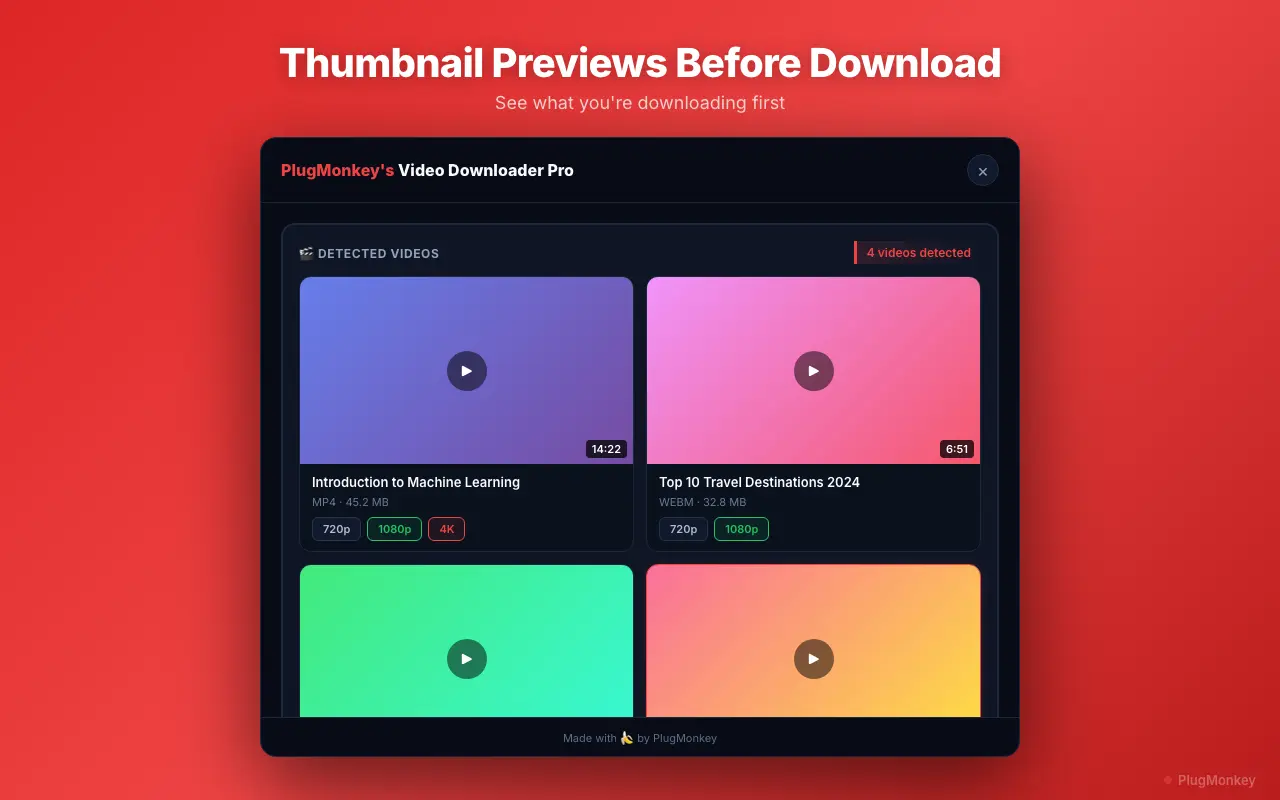
Video Downloader Pro is the right tool when you're already watching a video and decide to save it. yt-dlp is the right tool when you've decided to bulk-archive. Use both — they're complementary, not competing.
Summary
Channel archival uses two tools complementarily: yt-dlp (free CLI) for bulk historical downloads and Video Downloader Pro (Chrome extension) for ongoing per-video captures. The full workflow takes 2-6 hours for a mid-size channel and produces a browseable, organized archive that survives the source channel's deletion. For preservation use cases (small creators you want to back up), set up a scheduled yt-dlp re-run to capture new uploads. For urgent cases (imminent deletion), skip planning and start the yt-dlp bulk download immediately.
Need More Help?
Get personalized AI assistance with additional tips and troubleshooting.
AI responses are generated independently and may vary
Frequently Asked Questions
Capture individual videos as you find them — Video Downloader Pro (free)
For the bulk archive workflow, install yt-dlp (free CLI). For ongoing per-video saves while you browse YouTube, install Video Downloader Pro. The two tools complement each other.