Twitch VOD Downloader — Chrome Extension for Full-Length, Source-Quality Captures
Twitch deletes Past Broadcasts after 14 days for standard accounts (60 days for Partners, Affiliates, and Prime subscribers). The official 'Save Highlight' feature caps at 60 minutes — useless for a 4-hour stream. Video Downloader Pro captures the HLS stream Twitch serves to viewers and saves the full broadcast as MP4 at original Source quality (typically 1080p60) — no Twitch downloader desktop app, no signup, no command-line tools.
Last updated: June 27, 2026
Twitch's VOD retention is shorter than most streaming platforms — and the gap between what viewers want to keep and what Twitch lets them save is one of the most-asked questions in the streaming community. Standard channels lose their broadcast recordings 14 days after the stream ended. Partner, Affiliate, and Prime channels get 60 days. Sub-only VODs require an active subscription to view, and once your sub lapses you lose access entirely — even to VODs that haven't expired yet. The window is tight. The alternatives are limited: Twitch's official 'Save Highlight' feature caps at 60 minutes (useless for a 4-hour broadcast), the Streamlink CLI tool requires terminal comfort most viewers don't have, and desktop apps like Twitch Leecher have been intermittently broken by Twitch's player updates for years. Video Downloader Pro reads the HLS stream Twitch serves to your browser during VOD playback and saves the full-length file as MP4 at original Source quality (up to 1080p60). Same workflow for normal Past Broadcasts, promoted Highlights (which Twitch keeps indefinitely), and sub-only VODs (as long as your subscription is active when you download). No desktop app, no command-line tools, no Twitch credentials beyond your normal browser login.
How to Download
Identify the VOD you want before Twitch deletes it
Twitch's three VOD types have different retention windows:
- Normal Broadcasts (Past Broadcasts tab): 14 days from stream end for standard accounts. 60 days for Partner / Affiliate / Prime accounts. Auto-deleted at expiry.
- Highlights (clipped from broadcasts): kept indefinitely. The streamer must manually promote a section to Highlight before the broadcast expires. After expiry, the highlight survives but the source broadcast is gone.
- Sub-only VODs: available only to active subscribers. If your sub lapses, you lose access to all sub-only VODs even if they haven't expired. Download while you're still subbed.
How to find them: from a channel page, click Videos tab. Filter by All Videos / Past Broadcasts / Highlights / Uploads. The expiration date appears under each thumbnail (e.g., 'Expires in 3 days' is your urgency signal).
For sub-only VODs: check whether the lock icon appears on the video thumbnail. If you're not subbed to that channel and the VOD is sub-only, the page won't even play it — you'd need to subscribe first.
Start playing the VOD to load the HLS stream
Open the VOD page and start playback. Twitch loads an HLS stream as a sequence of .ts segments referenced by an .m3u8 playlist. The stream Twitch serves you depends on your quality setting in the player:
- Auto — Twitch picks based on connection. Often falls to 720p or 480p which is lower than necessary for an archive.
- Source / 1080p60 — the original broadcast quality. Largest file, best for archiving.
- 720p, 480p, 360p, 160p — transcoded variants. Smaller files, lower quality.
Critical: set the quality to Source (or the highest available) BEFORE triggering Video Downloader Pro. The extension captures the stream the player loaded, not the highest available. Pick Source via the gear icon → Quality → Source.
One Twitch-specific quirk: 60fps Source streams (common for FPS / fighting / racing games) are noticeably larger than 30fps streams of the same resolution. A 4-hour Source 1080p60 broadcast can produce a 7-10 GB MP4 file.
Open Video Downloader Pro and select the full VOD stream
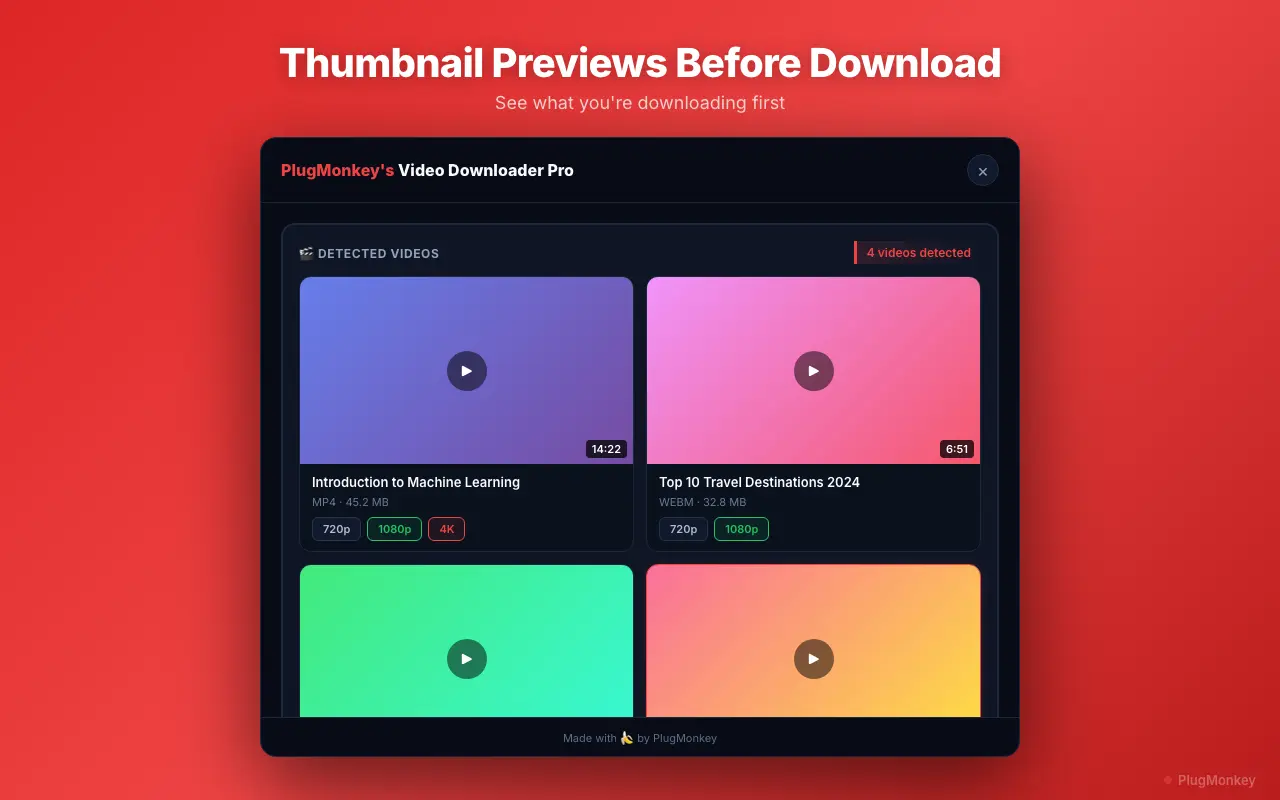
Click the Video Downloader Pro extension icon. For a Twitch VOD, you'll see entries like:
- Source (1920×1080, 60fps, H.264 AAC, ~4h 12m) — the full broadcast at original quality
- 720p60, 480p30, etc. — transcoded variants if Twitch generated them
- Audio-only — the audio track separated. Useful for podcast-style streams.
For a full archive: select Source. For a smaller file (still very watchable): 720p60 cuts file size to about 30% of Source. Click Download.
The extension downloads HLS segments serially and muxes them into a single MP4. For multi-hour broadcasts this takes time — on a 100 Mbps connection, a 4-hour Source download takes ~15-25 minutes (not real-time because HLS segments download in parallel for completed VODs, unlike live streams).
Twitch occasionally chunks long broadcasts into multiple parts visible as separate playlist URLs. If the extension shows two or three separate streams labeled '/v/123 part 1', '/v/123 part 2', download each individually — Twitch's player concatenates them in playback but they're separate files at the CDN level.
Verify the file, then crop or convert as needed
Once download completes, open the MP4 in VLC to verify duration and quality. For a Source 1080p60 capture, expect:
- Resolution: 1920×1080
- Framerate: 60fps (or 30fps if the original stream was 30fps)
- Audio: AAC stereo at 160kbps
- Container: MP4 with H.264 video
Common post-download tasks:
- Crop to a highlight clip: Twitch's 60-minute Highlight feature can be exceeded by downloading the full VOD and using a video editor (Shotcut free, DaVinci Resolve free, Premiere) to extract a 90-minute / 2-hour / longer clip. The extension's full-VOD download bypasses Twitch's clip-length cap entirely.
- Compress for sharing: a 4-hour Source MP4 might be 8 GB. HandBrake (free) re-encodes to ~1-2 GB at the same visible quality. Use HandBrake's 'Fast 1080p30' preset.
- Extract audio for podcast-style streams: if the stream was conversation-heavy, extract MP3/M4A in VLC (Media → Convert/Save). Listen in podcast apps.
- Archive to long-term storage: for permanent archive, move to a labeled folder with streamer name + date + stream title. The downloaded file has Twitch's URL-style filename which is meaningless 6 months later.
Supported Formats
- MP4 Source (1920×1080, 60fps, H.264 AAC) — original broadcast quality
- MP4 720p / 480p / 360p / 160p — transcoded variants if Twitch generated them
- Audio-only (AAC) — track separated for podcast-style archiving
Limitations
- Twitch deletes Past Broadcasts after 14 days (standard) or 60 days (Partner / Affiliate / Prime). Once a VOD is deleted from Twitch's CDN, the extension cannot recover it — only the streamer can re-upload from local recording.
- Sub-only VODs require active subscription to the channel during playback. Once your subscription lapses, all sub-only VODs become inaccessible, including for download.
- Source quality must be selected in the player before triggering the extension. Selecting Auto / 720p means the extension captures only the lower-quality stream that was loaded, not the highest available.
- Long broadcasts (4+ hours) at Source 1080p60 produce 7-10 GB files. Ensure you have free disk space before starting the download.
- Twitch's CDN occasionally throttles concurrent connections from the same IP. If a download stalls, the extension resumes when throttling lifts — no manual restart needed.
Need More Download Help?
Ask AI for additional tips on downloading Twitch VODs content.
AI responses are generated independently and may vary
Frequently Asked Questions
More Download Guides
Save Twitch VODs before the 14-day delete clock runs out
Install Video Downloader Pro free. Full-length Source-quality captures (up to 1080p60), sub-only support with active subscription, no desktop app required.