Twitch Clip Downloader — Chrome Extension, Free, MP4 1080p
Free Chrome extension that detects Twitch clip videos as you browse and saves them as clean MP4 in one click — 480p, 720p, or 1080p (source quality). No signup, no third-party sites, no watermark. Works on any clip URL (clips.twitch.tv/{slug} or twitch.tv/{channel}/clip/{id}) and supports clips shared from mobile via the iOS / Android Twitch apps.
Last updated: June 28, 2026
Twitch Clips are short highlight moments (typically 30 seconds, configurable up to 60 seconds) created from live streams or VODs via the 'Clip' button in the Twitch player. Unlike VODs (which expire after 14-60 days depending on account tier), Clips don't expire — once created, they live indefinitely on clips.twitch.tv. They're meant to be shared, which is why the Twitch interface has no built-in 'Save to disk' option — the platform wants Clips embedded in Discord, posted to Reddit, retweeted, watched on the Twitch site (where ads serve). For viewers who want to archive Clips locally for personal reference, video editing, or offline viewing, a Chrome extension fills the gap. Video Downloader Pro detects the Clip video stream as you view it in Chrome and saves the underlying MP4 directly to your computer — same source file Twitch serves to the player, with no re-encoding, no watermark, and no third-party server in the middle. Works on any Clip URL format: the short clips.twitch.tv/{slug} share links, the channel-prefixed twitch.tv/{channel}/clip/{id} URLs, and Clip embeds on external sites.
How to Download
Navigate to the Twitch clip page
twitch.tv/[channel]/clip/[clip-id]. Make sure the clip has loaded and is playing before proceeding — the extension needs the video to be active in the page.Open Video Downloader Pro
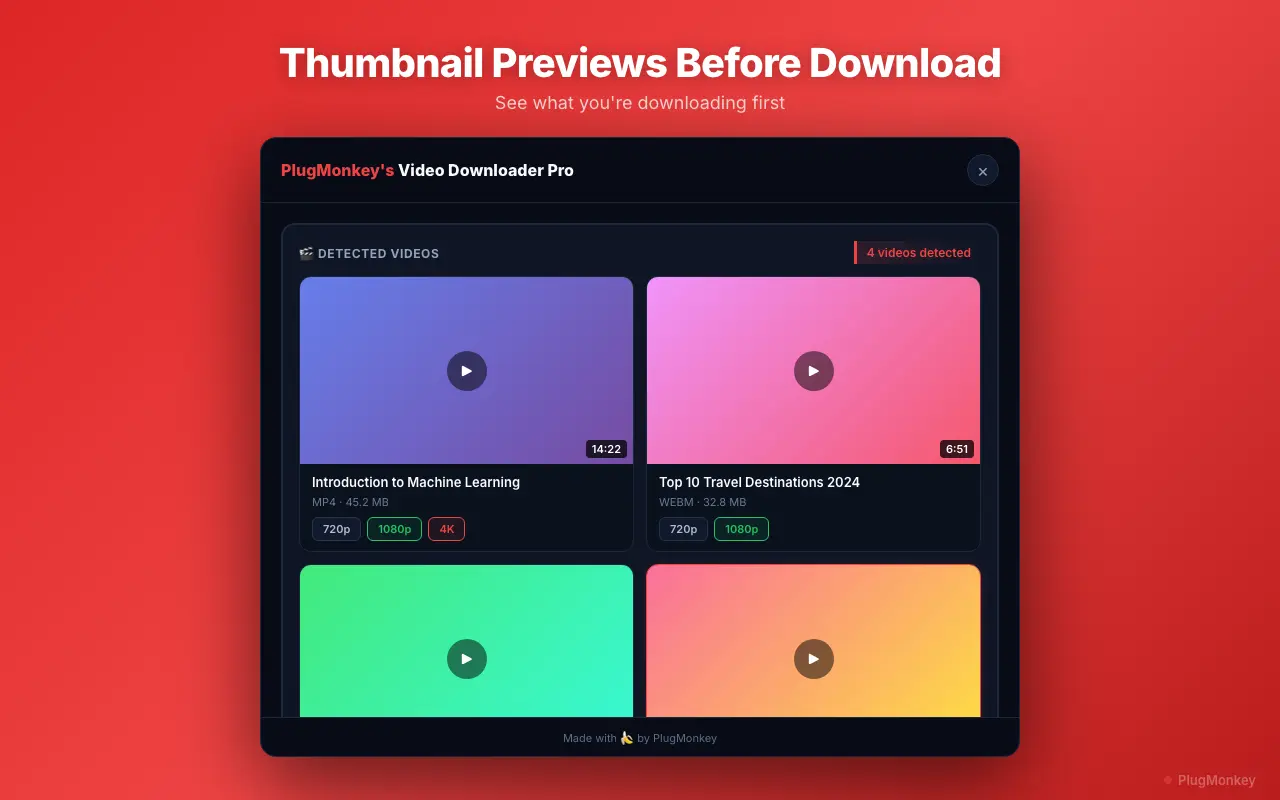
Choose your quality
Download the clip
Handle Twitch Clip edge cases (mobile shares, embedded clips, deleted clips)
Several Twitch Clip contexts have quirks worth knowing about:
- Mobile-shared clip URLs: The Twitch iOS and Android apps share Clips using short clips.twitch.tv/{slug} URLs (different format from the desktop twitch.tv/{channel}/clip/{id} URLs). Both formats resolve to the same Clip — the extension detects either. Paste the mobile share URL into Chrome and the workflow is identical.
- Clips embedded on external sites (Discord, Reddit, social media): Twitch's embed widget wraps the same video player used on twitch.tv. The extension detects the underlying Clip stream regardless of the embedding wrapper. If detection fails on an embed, click through to the canonical clips.twitch.tv URL (the embed has a 'View on Twitch' link) and the extension will work.
- Source quality vs transcoded variants: Twitch generates multiple quality tiers from the source upload. 'Source' quality is whatever the streamer broadcast at (usually 1080p60 for serious streamers, 720p for casual). 480p and lower are transcoded variants. For archiving or editing, always pick Source if available.
- Deleted Clips: Clips deleted by the creator, by Twitch moderation, or affected by channel bans are removed from clips.twitch.tv entirely. The extension cannot recover deleted Clips — they're gone from the CDN. The only backup is whatever you (or someone else) already downloaded.
- Clip vs VOD distinction: Clips are short (≤60 sec), don't expire, and use simple MP4 delivery. VODs (Past Broadcasts) are full streams, expire after 14-60 days, and use HLS streaming. They're different workflows — see Download Twitch VODs for the full-broadcast download workflow.
Supported Formats
- MP4 480p — transcoded variant (smaller file, lower quality)
- MP4 720p — most common Clip quality tier
- MP4 1080p — Source quality (when streamer broadcasts at 1080p)
- MP4 1080p60 — Source for 60fps streams (gaming, FPS / racing content)
Limitations
- Full Twitch VODs (Past Broadcasts) use a different HLS-based stream — for full broadcasts use the dedicated Download Twitch VODs workflow.
- Clips from channels that have been banned by Twitch or that the creator has deleted are removed from clips.twitch.tv entirely — no extension can recover them.
- Quality options depend on the original stream quality. If the streamer broadcast at 720p, no Clip from that stream will have 1080p available regardless of which extension you use.
- Sub-only Clips (from sub-only streams) require an active subscription to the channel to view AND to download. The extension uses your existing browser session — if you can view it logged in, you can download it.
- Mobile Chrome on Android does not support extensions — use desktop Chrome for downloads, share clip URLs from mobile to desktop via your preferred method.
Need More Download Help?
Ask AI for additional tips on downloading Twitch Clips content.
AI responses are generated independently and may vary
Frequently Asked Questions
One-click Twitch Clip downloads — Source quality, MP4, free, local
Video Downloader Pro detects Twitch Clips as you view them and saves the underlying MP4 directly — Source quality up to 1080p60, no watermark, no third-party server. Same extension handles sub-only Clips with active subscription, mobile-shared clip URLs, and embedded Clips on Discord and Reddit.