VPN → Play → Capture: Save Videos Blocked in Your Region
'This video is not available in your country' isn't an extension problem — it's the platform refusing to serve the stream to your IP. VPN to a region where the video is allowed, play it, then Video Downloader Pro captures the stream like any other video.
Last updated: June 20, 2026
Geo-restriction happens at the platform's server, not the browser. When Twitter shows 'This media is not available in your region,' YouTube shows 'This video is not available in your country,' or BBC iPlayer shows 'Sorry, BBC iPlayer is only available in the UK,' the platform is refusing to serve the video stream based on your IP address. Browser extensions can't bypass this because there's no stream to capture — the platform never sent one. The actual workflow is straightforward: use a VPN to appear in a region where the video is available, play the video so the platform serves the stream to your now-VPN-masked IP, then Video Downloader Pro captures that stream as normal. This guide covers the VPN + capture workflow, the platforms where it works and doesn't, and the legal / TOS context that matters for what you do with the downloaded file.
How to Download
Diagnose what kind of restriction you're hitting — VPN-fixable or not
Not every 'video unavailable' message is geo-restriction. Three common causes look similar but have different fixes:
- Geo-restriction (VPN-fixable): the message specifically references region — 'not available in your country,' 'not available in your region,' 'GB only,' etc. The platform's IP-based geo-filter is blocking. VPN to an allowed region fixes it.
- Age-restriction (VPN doesn't help): the platform requires a logged-in adult account. Log in with a verified account; VPN doesn't bypass age gates.
- Account-private or DMCA-removed (no fix): the video was removed, set to private, or geoblocked everywhere. No VPN region will unblock it because no IP can play it. Wayback Machine and archive.org are the only paths if the content was archived before removal.
- Paywall / subscription gate (VPN partial): the platform requires an account with paid access (Netflix, Disney+, Apple TV+). VPN to a region where the content exists in your catalog, but you still need an active subscription. Many streaming services have started detecting and blocking VPN-detected accounts.
Test step: visit the video URL on archive.org's Wayback Machine. If Wayback has a copy, the content existed once. If Wayback only shows error pages, it may never have been publicly available.
Pick a VPN region that actually unblocks the video
For each platform, the right region varies:
- Twitter / X 'media not available in your region': Usually US, UK, Germany, or Japan unblocks. Specific Tweet was often blocked due to a regional copyright complaint — try US first. Skip Iran, China, Russia VPN exits as Twitter throttles them.
- YouTube region locks: Music video region locks vary widely. Try the country of the video's uploader first (visible in the channel info). For US-uploaded music videos blocked outside US: VPN to US. For BBC, ITV, Channel 4 content: VPN to UK.
- BBC iPlayer: UK only, period. VPN to UK. iPlayer actively detects and blocks known VPN IP ranges — use a residential-IP VPN (Smart DNS Proxy, Surfshark with rotating servers) rather than a commercial-datacenter VPN like NordVPN's standard exits, which iPlayer blocks reliably.
- Regional sports (UEFA, NBA League Pass, MLB): League blackout policies are aggressive. Game-specific blackouts often require you to be OUT of the home-team's local market. VPN to a region that has the broadcasting rights.
- Streaming services (Netflix, Disney+, etc.): all have VPN detection. Free / cheap commercial VPNs are blocked instantly. Paid VPN services with residential IPs work, but with reliability that varies week to week as detection arms-race continues.
Reliable VPN picks for 2026: Mullvad (€5/mo, privacy-focused, blocked by Netflix), NordVPN (works for most platforms but Netflix-detected sometimes), ProtonVPN (free tier limited, paid tier solid), Surfshark (cheap, decent at unblocking).
Connect VPN → reload the video URL → play through to load the stream
The capture flow once VPN is connected:
- Connect VPN to the chosen region. Verify your apparent IP via a service like whatismyipaddress.com — confirm the location matches the region you selected.
- Open a fresh tab (clear platform cookies if possible — old session cookies sometimes carry geo-location data). Visit the video URL.
- Wait for the platform to recognize your VPN region. Some platforms cache geo decisions for the session — if you previously visited from your real region, you may need to clear cookies for that platform first.
- Play the video. If the geo-restriction message is gone and the player starts loading, the VPN region is accepted. If the message persists, try a different server (same VPN) or different region.
- Once playing, set max quality. Same as non-geo-restricted downloads: pick the highest resolution available in the player settings before triggering the extension.
For Twitter / X 'geo forbidden' videos specifically: the platform sometimes blocks even logged-in views. Try the same video URL in an incognito Chrome window (no logged-in session) with VPN active — sometimes the anonymous view succeeds where logged-in view fails.
Trigger Video Downloader Pro and capture the stream
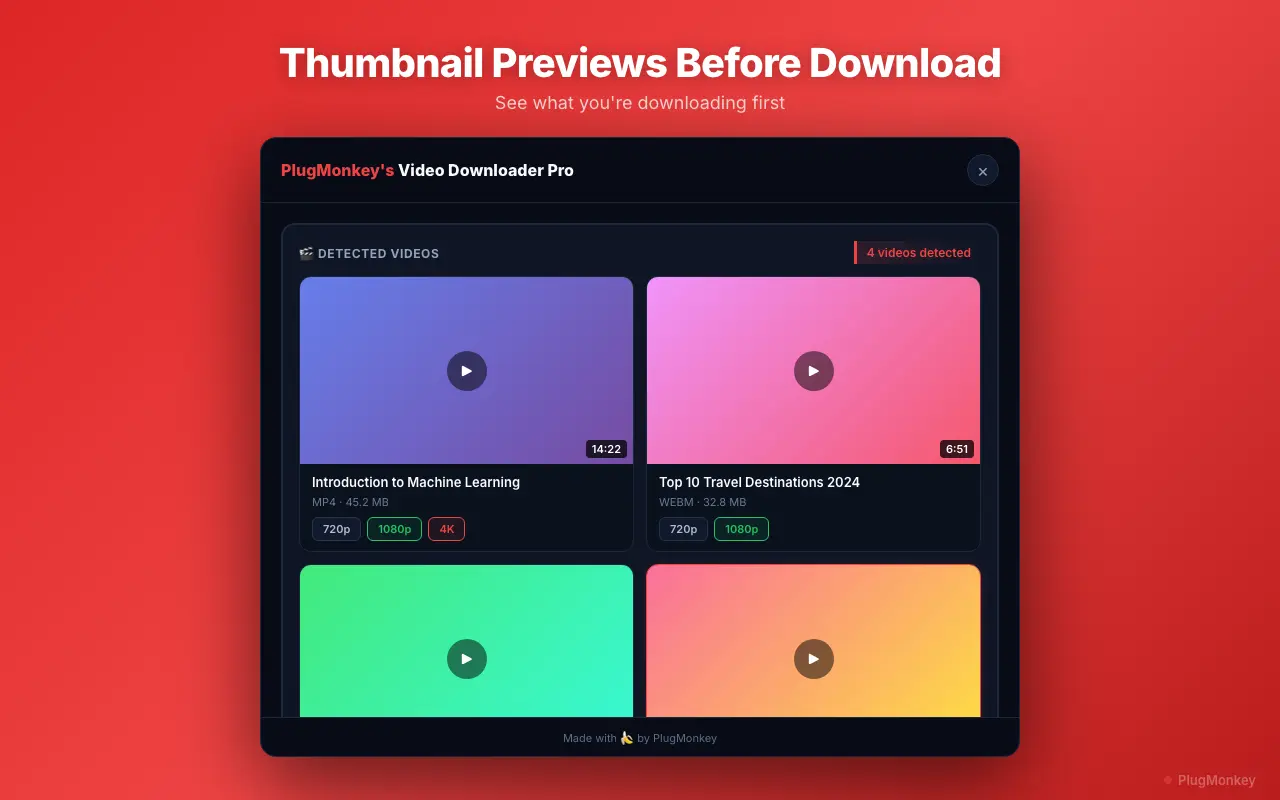
With the video playing and the VPN active, click the Video Downloader Pro extension icon. Capture works identically to any other geo-allowed video:
- The extension shows the available quality streams (1080p, 720p, etc.)
- Select the highest quality you want
- Click Download — segments stream through your VPN connection to your browser, the extension muxes them into a single MP4 / WebM
Two practical considerations specific to VPN downloads:
- Speed. VPN connections are slower than direct connections — expect 30-60% of your normal download speed depending on VPN, region, and time of day. A download that takes 5 minutes direct may take 10-15 minutes through VPN. Patience.
- Stability. VPN connections occasionally drop mid-download. If a download fails partway, reconnect VPN to the same region and retry — Video Downloader Pro resumes from where it stopped (HLS segment-level resumption).
After the download completes, you can disconnect the VPN. The MP4 file lives on your disk and plays normally regardless of your real IP.
Understand what you can and can't do with the downloaded file
The legal and TOS context for geo-restricted downloads is more nuanced than for normal downloads:
- Personal viewing of content you have legitimate access to elsewhere: generally fine. If you're a UK citizen abroad downloading BBC iPlayer to watch a show you've paid for via license fee, the geo-block is administrative rather than a content-rights issue.
- Content paid for in your region but geo-blocked while traveling: generally fine. Netflix US subscribers traveling internationally who VPN home to watch their US library are working around a UX limitation, not a rights violation.
- Content that's outright not licensed in your region: legal gray area. A US film not released in your country, that you watch via VPN, sits in territory where the rights-holder hasn't authorized distribution. Personal viewing is rarely enforced; redistribution definitely isn't fine.
- Sports blackouts: league-by-league TOS issue. Major leagues take blackout circumvention seriously and pursue commercial-scale violators. Individual viewers rarely face consequences, but it's a TOS violation either way.
- Redistributing downloaded geo-blocked content: not fine. Uploading a BBC iPlayer download to YouTube, sharing a Netflix-region-locked film, sharing a sports broadcast — all are rights violations regardless of how you obtained the file.
The safe rule: personal viewing on your own device is the use case. Anything that involves making the file available to others is where rights-holders pay attention.
Supported Formats
- MP4 (H.264) — works for most geo-blocked video sources
- WebM (VP9 / AV1) — better compression where the source offers it
- M3U8 / HLS streams — automatic mux into MP4 for streaming-only sources
Limitations
- VPN must be active and properly geo-located BEFORE the video page loads. Platforms cache geo decisions for the session; switching VPN mid-page won't fix geo-blocks already detected.
- Streaming services (Netflix, Disney+, Apple TV+, Hulu) actively detect and block known VPN IP ranges. Free VPNs and most cheap paid VPNs are blocked; even premium VPNs work intermittently as detection arms-race continues.
- VPN download speed is typically 30-60% of direct connection speed. Plan accordingly for large files — a 5 GB download may take 30-60 minutes through VPN vs 15-20 minutes direct.
- DNS leaks can defeat VPN geo-spoofing entirely. Test for DNS leaks at dnsleaktest.com after connecting; enable DNS leak protection in your VPN client settings.
- Some platforms (BBC iPlayer especially) maintain aggressive VPN-detection blocklists. Residential-IP VPNs or Smart DNS proxies work better than datacenter-IP VPNs for these platforms.
- Content that's been DMCA-removed, set to private, or geoblocked globally cannot be unblocked by any VPN — no IP can play it.
Need More Download Help?
Ask AI for additional tips on downloading Geo-Restricted Videos content.
AI responses are generated independently and may vary
Frequently Asked Questions
Unblock geo-restricted videos with VPN + Video Downloader Pro
Install Video Downloader Pro free. Pair with any VPN (Mullvad, ProtonVPN, NordVPN) to capture videos from any region's available content.