How to Get an OpenAI API Key
Creating a key takes about two minutes. The parts people get wrong are the billing setup, the spend limits, and where it's safe to paste the key afterward — all covered here.
Before You Start
- An email address (for the OpenAI platform account)
- A payment method — API access is prepaid and separate from ChatGPT Plus
Know that API access is separate from ChatGPT Plus
This trips up almost everyone the first time. A ChatGPT Plus subscription and API access are two different products with separate billing:
- ChatGPT Plus — a flat monthly fee for using chatgpt.com in your browser. It does not include API credit.
- API access — pay-per-use billing at platform.openai.com, used by tools and extensions that talk to OpenAI programmatically.
Paying for Plus does not give you an API key with credit on it, and having an API key does not give you chatgpt.com's Plus features. If you want AI inside other tools, the API key is the one you need.
Create your account on the OpenAI platform
Go to platform.openai.com and sign in, or create an account if you don't have one. If you already use ChatGPT, the same login works — the platform is just a different surface on the same account.
Once you're in, you'll land on the developer dashboard rather than a chat window. This is where keys, usage, and billing live.
Add a prepaid balance
OpenAI's API runs on prepaid credit. The broad free-trial credits that new accounts used to receive have been wound down, so in most cases you'll need to add a balance before paid API calls will work.
- Open Settings → Billing.
- Add a payment method.
- Buy an initial credit balance — the minimum purchase is typically $5, which goes a very long way for personal use.
Credit is drawn down per request. There is no monthly fee, so if you don't use it in a given month, you aren't charged anything.
$5 is genuinely a lot of credit for browser-extension use. Most people running a few hundred prompts a month spend a couple of dollars, so a single top-up often lasts months.
Set spend limits before you create the key
Do this first, not after. In Settings → Limits you can set:
- A monthly budget that hard-stops API calls when reached
- An email alert threshold so you're warned before you hit it
It costs nothing and removes any anxiety about a runaway bill from a misconfigured tool. If you also enable auto-recharge, set it deliberately — auto-recharge with no budget cap is the one combination that can actually surprise you.
If you enable auto-recharge, always pair it with a monthly budget limit. Auto-recharge alone will keep topping up your balance indefinitely.
Create the key and copy it immediately
Go to platform.openai.com/api-keys and click Create new secret key. Give it a descriptive name tied to where you'll use it — for example "Chrome extension" — so you can revoke exactly the right one later.
Copy the key the moment it appears. OpenAI shows the full value once and never again. If you lose it, you can't recover it; you just delete that key and create a new one, which is harmless as long as you update wherever it was used.
Keys look like sk-... followed by a long random string.
Never paste an API key into a random website, a public repo, a screenshot, or a support chat. Anyone with the key can spend your balance. If it leaks, revoke it from the same page immediately.
Use the key in your browser with a BYOK extension
A key on its own does nothing — it needs a tool. The most useful everyday one is a BYOK (bring your own key) browser extension, which lets you use the model on any page you're already on.
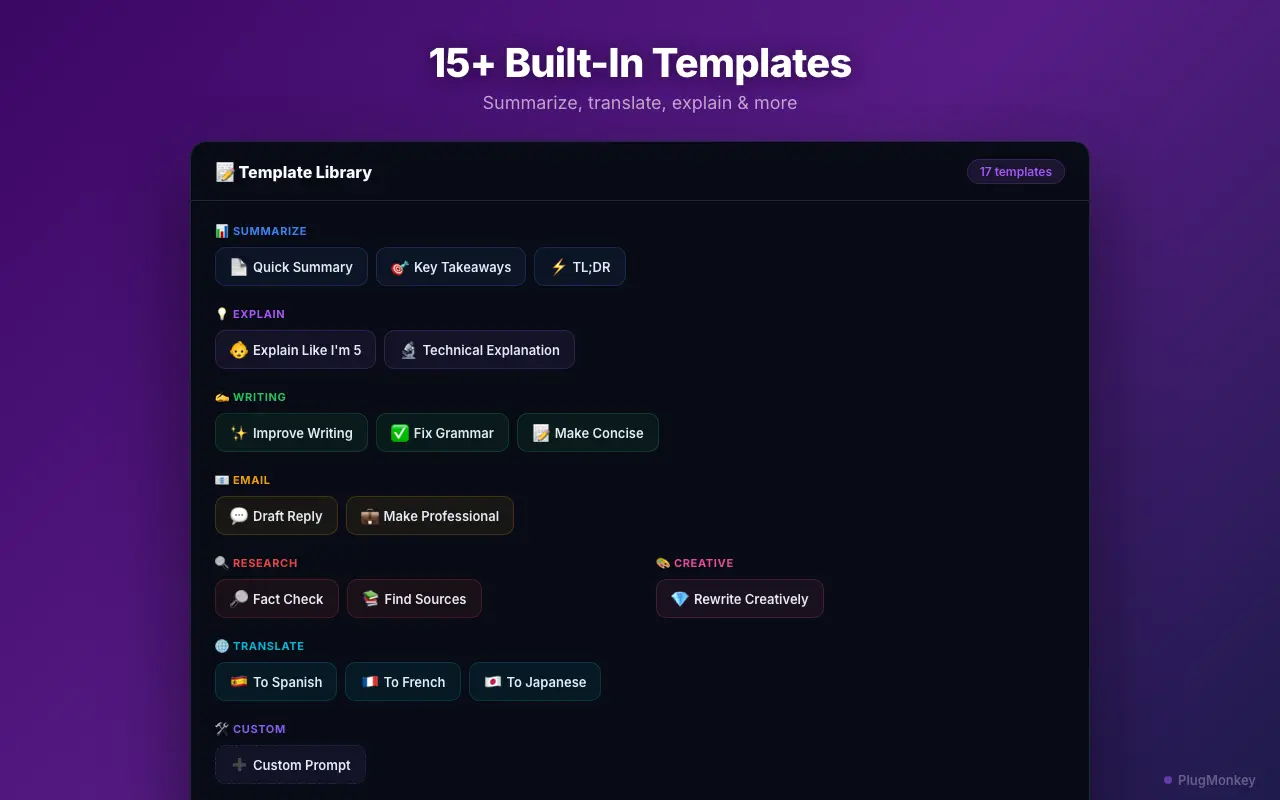
In Prompt Anything Pro, open Settings, paste the key into the OpenAI field, and save. The key is stored locally in your browser and is only ever sent to OpenAI — it never passes through our servers. From then on you can select text anywhere, pick a template, and get a response in place.
The same extension accepts Anthropic and Google keys too, so you can add more providers later and switch models per prompt.
Create a separate key for each tool you use. If you ever need to revoke one, the others keep working and you know exactly which tool was affected.
Summary
An OpenAI API key is created at platform.openai.com/api-keys and is completely separate from a ChatGPT Plus subscription — Plus does not include API credit. The API is prepaid, so add a small balance (the minimum is usually $5, which lasts a long time for personal use) and set a monthly spend limit before you generate the key. Copy the key immediately since it's shown only once, name it after the tool you'll use it in, and never paste it anywhere public. To actually use it day to day, add it to a BYOK browser extension like Prompt Anything Pro, where the key stays local and you pay OpenAI directly per token instead of a flat monthly fee.
Need More Help?
Get personalized AI assistance with additional tips and troubleshooting.
AI responses are generated independently and may vary
Frequently Asked Questions
Put Your API Key to Work
Prompt Anything Pro uses your own OpenAI, Anthropic, or Google key on any webpage. Keys stay in your browser, and you pay per token instead of $20/month. Free to install.