How to Remove LinkedIn Connections in 2026
Whether you want to drop one stale contact or clean up hundreds at once, this guide covers the built-in LinkedIn method, the remove-vs-unfollow decision, and how to do a large cleanup without hours of clicking.
Before You Start
- Google Chrome browser (desktop)
- A LinkedIn account, logged in via the browser
- For bulk cleanup: Connection Remover Pro for LinkedIn installed from the Chrome Web Store
Decide whether to remove or unfollow first
Before you remove anyone, know that LinkedIn gives you two very different actions:
- Remove connection — ends the relationship entirely. You are no longer 1st-degree connections, and they can no longer message you as a connection.
- Unfollow — keeps the connection but hides that person's posts from your feed.
If your goal is just a quieter feed, unfollowing is the better move — it declutters without cutting the professional tie. Remove only when you genuinely don't want the person in your network anymore. Neither action sends a notification.
A good rule of thumb: unfollow noisy-but-useful contacts (they may refer you or hire you later), and remove spam accounts, fake recruiters, and contacts you don't recognize at all.
Remove a single connection the built-in LinkedIn way
To remove one connection directly on LinkedIn (no tools needed):
- Go to the person's profile.
- Click the More button below their headline (next to Message).
- Select Remove connection.
- Confirm in the dialog.
You can also do it from your connections list: go to My Network → Connections, click the … next to a contact, and choose Remove connection. This is perfect for one-off cleanup, but it gets tedious fast when you have dozens or hundreds to review.
Removing a connection is effectively permanent — LinkedIn does not offer an undo. To reconnect, you would have to send a fresh connection request. Review before you confirm.
Install Connection Remover Pro for LinkedIn for larger cleanups
The free version covers up to 15 combined remove/unfollow actions per week — enough to try it and clear a small backlog. PRO removes the weekly cap and adds true bulk operations.
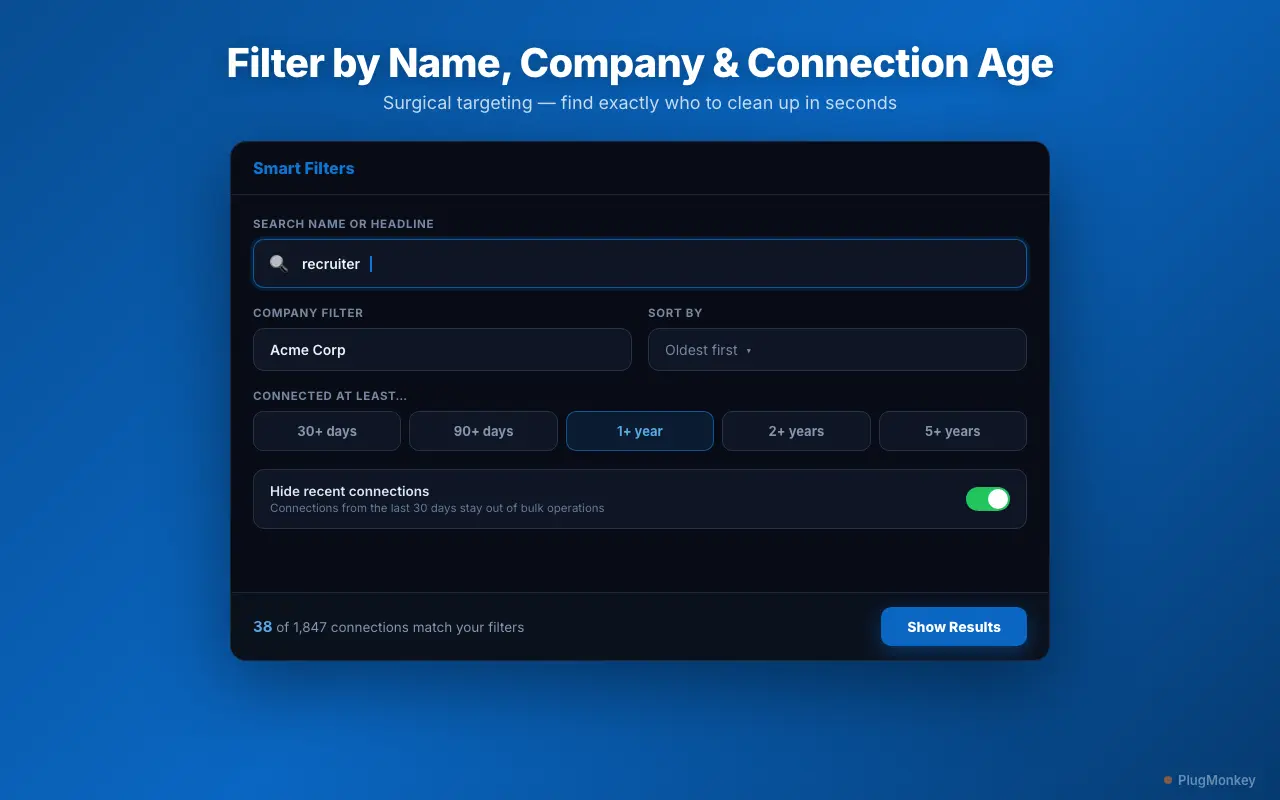
Filter to find exactly who you want to remove
Open the panel and use the filters to narrow your list before acting:
- Search by name, headline, or company keyword
- Company filter — match the job title / organization line to clean up ex-colleagues after leaving a job
- Connection-age filter — target contacts you connected with a year or more ago
- Sort by Recently Added, Oldest first, or alphabetically
The panel shows a live count of how many connections match, and a preview so you can see exactly who is in scope before you touch anything. Connections from the last 30 days are hidden by default so you don't accidentally remove someone you just met.
Add key contacts — clients, colleagues, mentors — to the Protected list first. Protected connections are never touched by bulk operations, even if they match your filters.
Remove in bulk with one click (PRO)
Once your filtered list looks right, use Mass Remove to clear every matching connection in one click. A real-time progress bar shows where you are, and you can cancel at any point. Choose a pacing mode — Conservative, Normal, or Fast — to control how quickly actions are sent. Conservative pacing is the safest choice for large runs.
What took an afternoon of manual clicking now takes a few minutes, and you stay in full control the whole time.
Bulk removal is powerful — always review the preview and your Protected list before starting a large run. Removed connections cannot be restored automatically.
Work through your network in sensible batches
For a big cleanup (hundreds of contacts), don't try to do everything in one sitting. A calmer, safer rhythm:
- Start with the easy wins — spam, fake recruiters, and accounts you don't recognize.
- Then target by company (ex-employers) or by connection age (contacts from 3+ years ago you've lost touch with).
- Spread larger runs across a few sessions rather than one giant batch.
This keeps your activity looking natural and gives you time to double-check you're not removing anyone valuable.
Summary
Removing LinkedIn connections is straightforward one at a time — profile → More → Remove connection — but that approach doesn't scale past a handful. For a real cleanup, decide remove vs unfollow per contact (unfollow for a quieter feed, remove to end the tie), then use Connection Remover Pro for LinkedIn to filter by name, company, or connection age and Mass Remove the matches in one click. Protect the contacts who matter, use Conservative pacing on large runs, and work in batches. Because no notification is ever sent, cleanup is completely private — the only person who knows is you.
Need More Help?
Get personalized AI assistance with additional tips and troubleshooting.
AI responses are generated independently and may vary
Frequently Asked Questions
Clean Up Your LinkedIn Network in Minutes
Connection Remover Pro for LinkedIn filters your connections by name, company, and age, then removes or unfollows in bulk — privately, with no notifications. Free to install.