How to Export LinkedIn Connections to CSV
Your connections list is worth backing up. This guide covers LinkedIn's built-in full export, plus how to export a filtered subset — just the contacts you actually want — for records, analysis, or planning a network cleanup.
Before You Start
- A LinkedIn account, logged in via the browser
- Google Chrome browser (desktop) for the filtered-export method
- For filtered CSV export: Connection Remover Pro for LinkedIn (PRO) installed from the Chrome Web Store
Export your full connections list with LinkedIn's built-in tool
LinkedIn offers a native export of your entire connections list. This is the right choice when you want a complete backup:
- Click Me → Settings & Privacy.
- Go to Data privacy → Get a copy of your data.
- Choose Want something in particular? and tick Connections.
- Click Request archive and confirm your password.
- LinkedIn emails you a download link — usually within about 10 minutes for connections, though larger requests can take longer.
The resulting CSV includes each contact's first and last name, LinkedIn profile URL, company, position, and the date you connected. Email addresses are only included for connections who allow it.
LinkedIn's native export gives you everything but doesn't let you filter. If you only want a specific slice — one company, or contacts from a certain era — the filtered method below is faster to work with.
Know when a filtered export is the better tool
The native export is all-or-nothing. But most people who search for this actually want a subset: the contacts from an old employer, connections older than a few years, or the exact list they're about to clean up. Exporting a filtered slice means:
- A shorter, more useful spreadsheet to work from
- A record of exactly what you removed, captured before you act
- Data you can drop straight into a CRM, Google Sheet, or Notion database
That's where a browser-based filtered export comes in.
Install Connection Remover Pro for LinkedIn
Filter to the connections you want to export
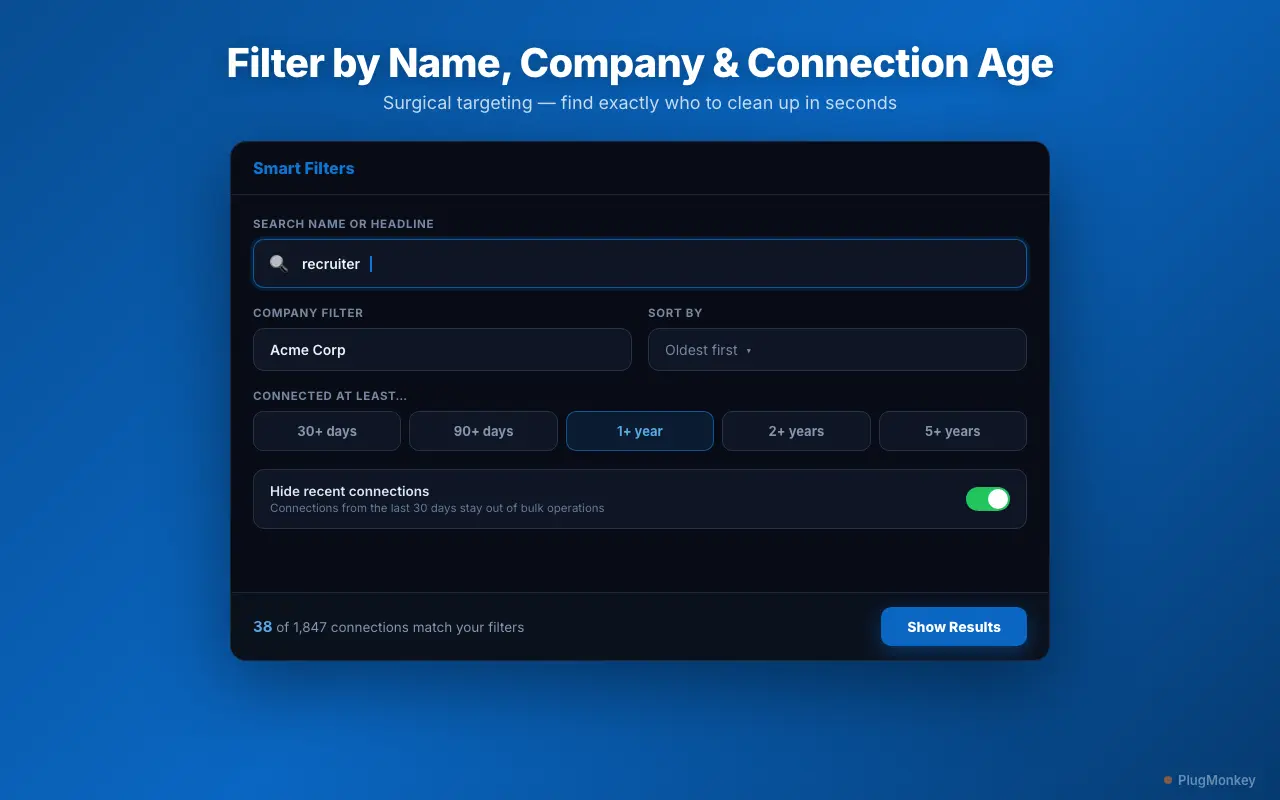
Open the panel and narrow your list with the filters:
- Search by name, headline, or company keyword
- Company filter to isolate everyone from a specific organization
- Connection-age filter to grab contacts from N+ days ago
- Sort by Recently Added, Oldest first, or alphabetically
The panel shows a live count and preview so you can confirm the list is exactly what you want before exporting.
Export the filtered list to CSV (PRO)
With your filtered list ready, click Export CSV (PRO). You get a spreadsheet of just the matching connections, which you can open in Excel, Google Sheets, or Numbers. Use it to:
- Keep a record before a cleanup — so you know exactly who you removed
- Analyze your network by company or connection age
- Import contacts into a CRM or a tracking database
Pair the export with the Remove or Unfollow actions to capture a snapshot first, then clean up with confidence.
Exporting before a bulk removal is smart insurance — since removed connections can't be restored automatically, the CSV is your permanent record of who was in your network.
Summary
There are two honest ways to export LinkedIn connections. LinkedIn's built-in data export (Settings → Data privacy → Get a copy of your data → Connections) gives you a complete CSV of every contact, delivered by email. When you only need a targeted slice — one company, older contacts, or the exact list you're about to clean up — Connection Remover Pro for LinkedIn lets you filter your connections and export just those to CSV (PRO). Exporting a filtered snapshot before a cleanup is especially useful, since it gives you a permanent record of contacts you remove.
Need More Help?
Get personalized AI assistance with additional tips and troubleshooting.
AI responses are generated independently and may vary
Frequently Asked Questions
Back Up and Clean Up Your LinkedIn Network
Connection Remover Pro for LinkedIn filters your connections and exports the exact slice you want to CSV — then removes or unfollows in bulk. Free to install.